

Using the phone app? See Lot numbers on your phone.
Every lot has a Lot Number: a whole number of 1 or more, unique within its catalog. LotJitsu fills it in for you, can read it from a sticker in your photo, and lets you change it at any time.
How the number is filled in
In the Add Lot window and on a lot's page, the Lot Number field has two buttons at its right: the sparkle fills the number, and the arrow opens a menu of ways to fill it.
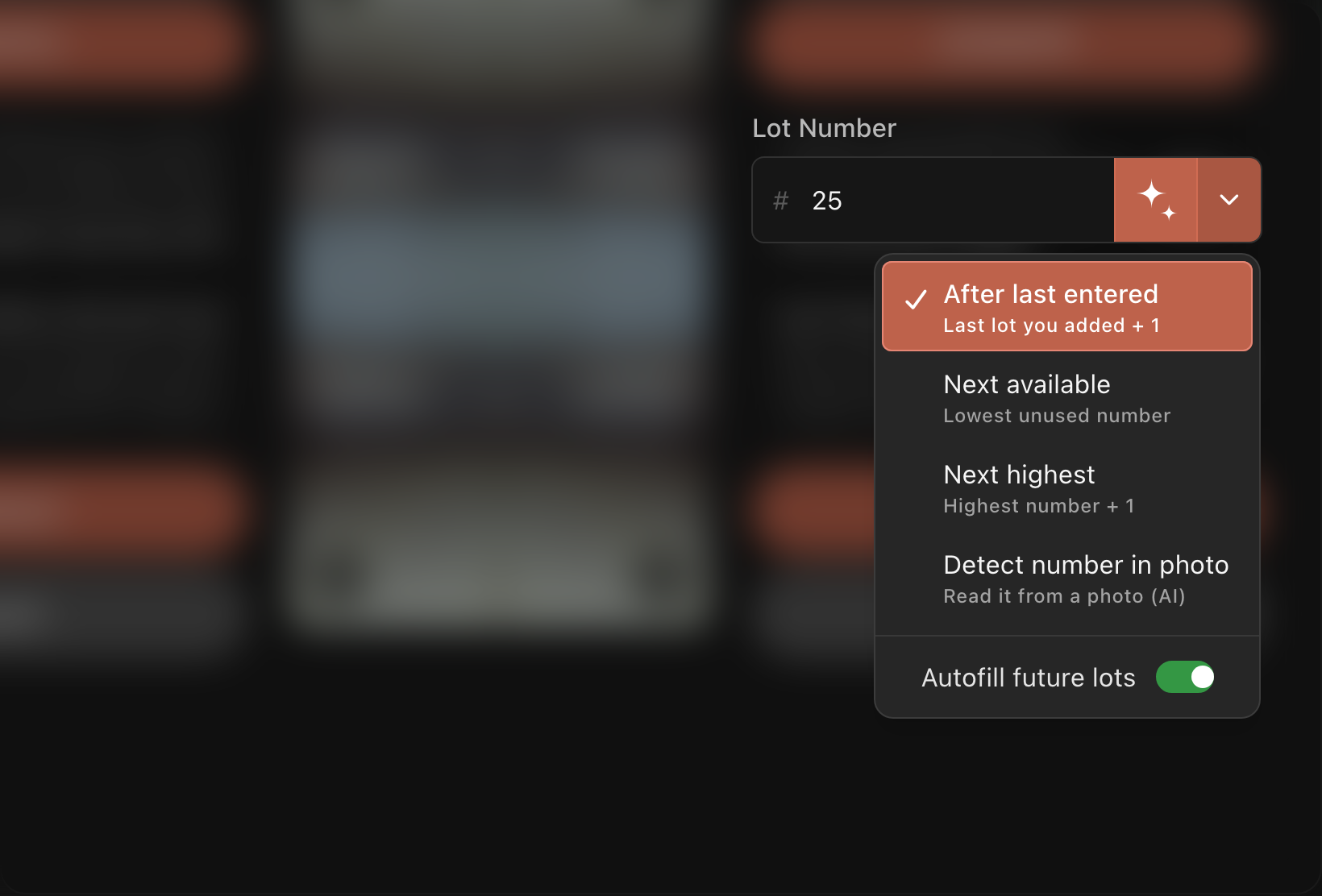
| Choice | What it fills in |
|---|---|
| After last entered | The number of the lot added most recently, plus 1, skipping any number already in use |
| Next available | The lowest number no lot uses yet (it fills gaps first) |
| Next highest | The highest number in the catalog, plus 1 |
| Detect number in photo | The number on the sticker or tag in your photos |
The choice you pick is saved to your account and used in the phone app too. Until you pick one, your computer uses After last entered.
In the Add Lot window, the menu also has an Autofill future lots switch. It is on unless you turn it off. When it is on, each new lot's number fills in by itself when the window opens, using your saved choice (with Detect number in photo, once you add a photo). When it is off, the field starts empty.
After last entered, Next available and Next highest always give an unused number. A number read from a photo is not checked, so it may already belong to another lot. If the number is taken, clicking Continue opens Lot N already exists (see below).
Read the number from a photo
- Put the lot's sticker or tag in the first photo, flat and in focus.
- Choose Detect number in photo from the menu.
- LotJitsu reads up to five of the lot's photos, cover first, and fills in the number.
If it can't read a number clearly, you see "Unable to detect lot number." Type the number yourself. With no photo yet, you see "Add a photo to detect the lot number."
Change a lot's number
- Open the lot from the catalog page.
- In Lot Number, type the new number.
- Press Enter or click anywhere else. The change saves straight away. Press Escape before you leave the field to put the old number back.
If the number can't be used, a message appears under the field: "Enter a lot number.", "Enter a whole number greater than 0.", "Lot N already exists in this catalog." or "Could not renumber lot."
When the number is already used
If you add a lot with a number another lot uses, a screen headed Lot N already exists opens:
- Change lot number: type a different number.
- After last entered or Next available: use the number shown. After last entered is offered only when its number is free.
- Merge with existing lot: add your new photos to that lot and keep its details.
- Replace existing lot's images: swap that lot's photos for yours, keeping its number and details. Its old photos can't be brought back.
- Back: return to your photos.
Good to know
- Only digits can be typed. A tag such as A12 can't be used.
- Once you click Continue, the new lot holds its number. If you go back with Photos and change it to a used number, "Lot N already exists in this catalog" appears under the field instead of the screen above.
- Two lots can't swap numbers directly. Move one to a spare number first.
- Renumbering a lot after you export means the earlier package no longer matches. Export again.
- The menu describes Detect number in photo as "Read it from a photo (AI)".

