

Using the phone app? See Edit a lot and rewrite it with Auto Write on your phone.
Open a lot to change its text, its Lot Number or its photos. On your computer every change saves by itself, so there is no Save button.
Edit a lot
- Open the catalog and click the lot's row.
- The lot's page shows its photos on the left and its fields on the right, with Lot Number at the top of the fields.
- Click into a field and change the text. It saves about a second after you stop typing, and again when you leave the field.
- Click Back to catalog name at the top left when you are done.
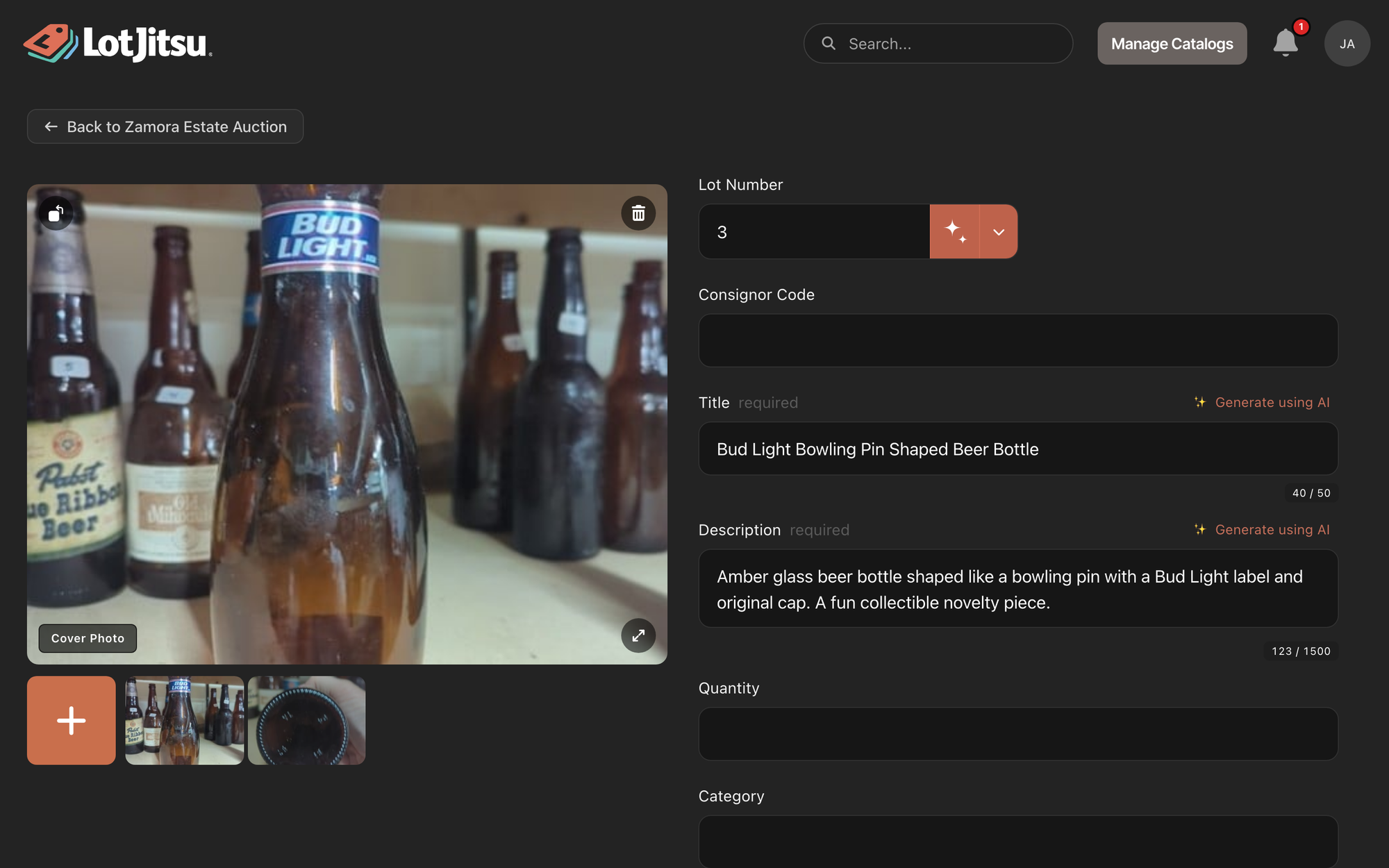
Ask LotJitsu to write a field again
Fields set to Auto in the catalog's settings have a Generate using AI button next to their name.
- Click the button beside the field.
- Wait while the field is covered by a moving three-square symbol.
- The new text appears and is saved.
The button replaces whatever is in the field, including text you typed, without asking. The old text is not kept.
Good to know
- Required fields say required after their name. If you clear one, "Field is required" appears and the empty value is not saved: the lot keeps its last text until you type a new one.
- Length limits: a field with a limit shows a counter such as 12 / 50 under it. The counter turns red at the limit. LotJitsu's own text always fits.
- Formatting: when the catalog uses rich text, the description has a toolbar with Bold, Italic, Bulleted list, Numbered list, Decrease indent, Increase indent and Edit HTML.
- No photos: asking for a field with no photos shows "Add at least 1 photo to generate content using AI."
- Nothing to generate: if LotJitsu can't write that field from your photos, a Nothing to generate message explains why. Click Ok, then try a clearer photo or type the text yourself.
- Two people at once: LotJitsu doesn't lock a lot while someone has it open. If two people change the same field, the later save wins.
- Delete a lot: you can't delete from the lot's page. Use the trash button on the lot's row on the catalog page.
- Error Code: 1010 - Support Team Notified means LotJitsu's writing is paused. Support has already been told, so no action is needed. Try again later.
- Photos: see Add, arrange and remove photos on your computer.
- What to check in the text LotJitsu writes: see Review the text LotJitsu writes.

