

Using the phone app? See Reorder lots on your phone.
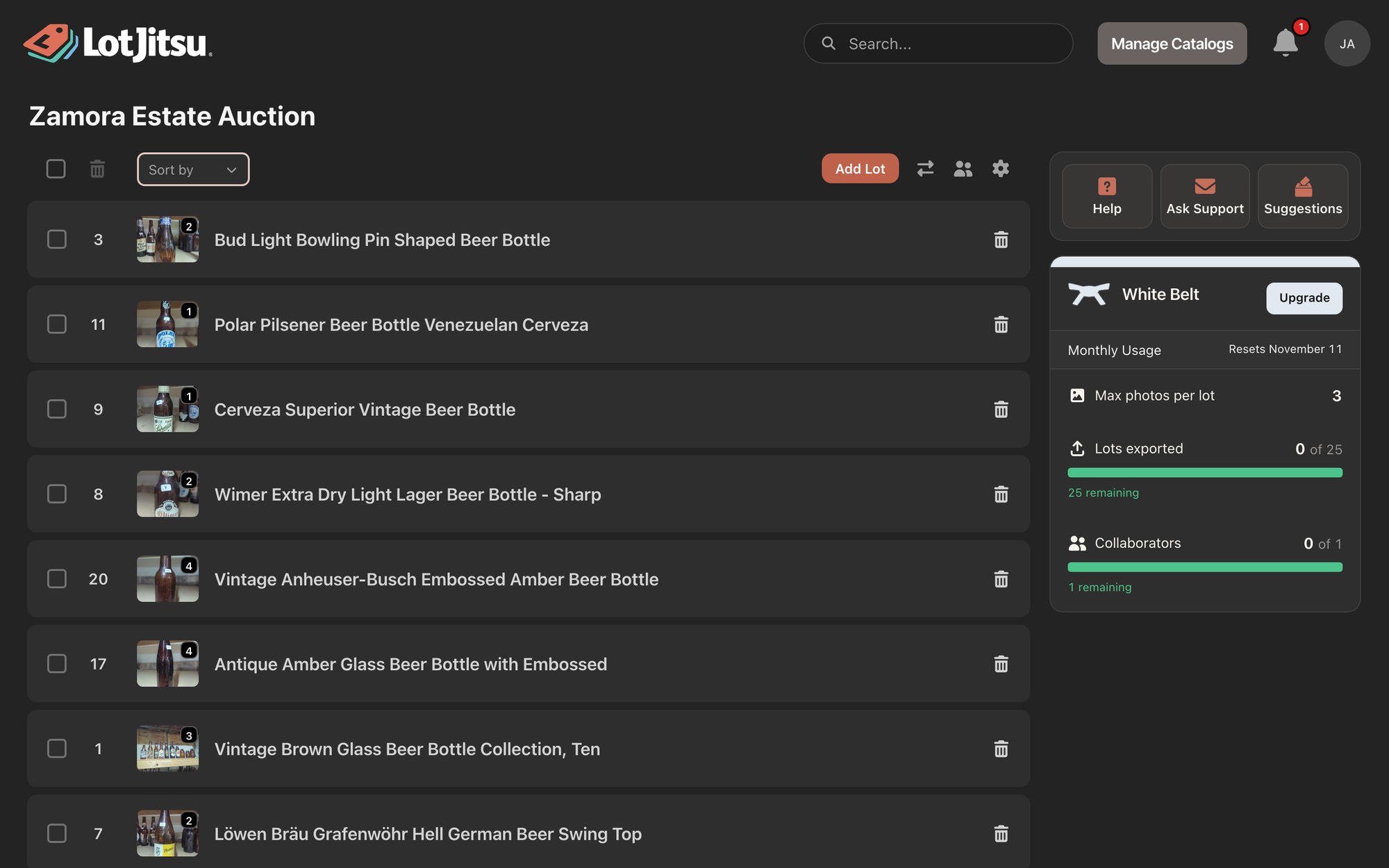
A catalog's page lists its lots, newest first. You can sort the list, drag lots into your own order, and select several lots to delete them together.
Sort the list
- Open the catalog.
- Open the Sort by menu above the list.
- Choose A-Z or Z-A to sort by title, or Low to high or High to low to sort by lot number.
Lots with no title (shown as Untitled lot) go to the end in both A-Z and Z-A.
Drag lots into your own order
- Point at a lot's row, then press and drag it up or down.
- Place it where you want it.
After a drag, the Sort by menu goes back to its blank setting, because the list is now in your own order.
Select and delete several lots
- Tick the box beside each lot you want, or tick the box at the top of the list to select every lot. The count of selected lots shows beside it.
- Click the trash button at the top of the list (Delete selected lots).
- On Are you sure? ("Deleting these N lots will also delete their photos."), click Delete.
To delete one lot, click the trash button on its row, then Delete lot. Deleted lots can be restored from History for 30 days.
Good to know
- Your sort or drag order is saved to your account. The phone app shows your lots in the same order.
- A sort or a drag changes only the order of the list. It doesn't change any Lot Number.
- A lot that is still being processed after Fast Entry Mode is faded, and can't be opened or deleted until it clears.
- A green Valid badge on a row means the lot has everything its platform requires.
- The Export button sits under the last lot.

