

Using a computer? See Import lots from a package on your computer.
Import brings the lots and photos from a ZIP package into a catalog. Use it to bring back a package you exported from LotJitsu, or any ZIP laid out the same way.
Before you start
- You will need a data connection.
- The ZIP must be on your phone, for example in Files or Google Drive. It holds one CSV file and the photos, all at the top level with no folders. Tap Import guidelines on the upload screen to see the layout.
- Limits on your phone: up to 1 GB, 2,000 lots and 20,000 photos per import. For a bigger file, import on your computer, which takes up to 5 GB.
- Lot numbers in the file must be whole numbers, such as 12. A leading zero is fine: 007 imports as lot 7. A number like A-12 or 1.5 cannot be imported.
- Photos can be named the way any platform names them, whatever platform your catalog uses:
12-1.jpg,12_1.jpg, or12.jpgfor a lot's cover. A bare12.jpgbecomes the cover; otherwise the lowest number is the cover.
Steps
- Choose where the lots go:
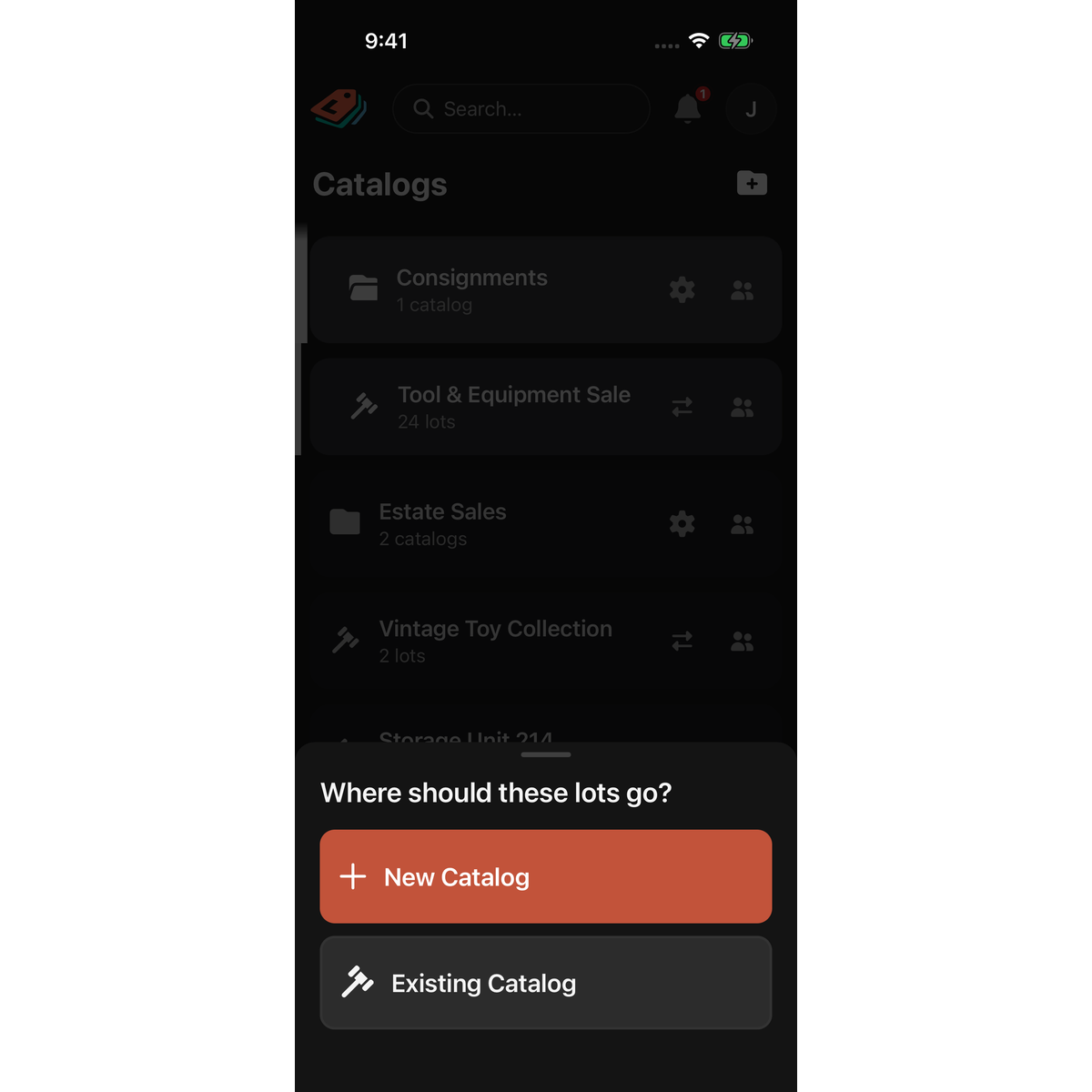
- From the account panel: tap your profile picture, tap Import, then answer "Where should these lots go?" with New Catalog or Existing Catalog. New Catalog walks you through creating a catalog, then tap Next Step: Import .Zip. The new catalog is created at the top level of your Catalogs list, not inside a folder; you can move it into one afterwards. Existing Catalog lists your catalogs to choose from.
- From a catalog you own: tap the Transfer icon (the left and right arrows), then Import ("Bulk add lots to this catalog").
- On Import .Zip File, tap "Tap to choose your file." and pick the ZIP. A bar shows the upload and then "Re-building your lots + photos…".
If you have changes made offline that have not been sent yet, the import pauses at Sync before importing. Tap Sync Now; the import continues once they are sent.
If a lot number in the package is already used in the catalog, compare Lot from catalog and Lot from import for each conflict and choose:
- Keep the lot in the catalog: the imported lot is not added.
- Keep the lot from the import: it takes the place of the catalog's lot.
- Keep both: renumber the imported lot: type a new number for the imported lot.
Keep both: renumber the catalog lot: type a new number for the catalog's lot.
Tap Apply Resolution & Continue after each one.
- On Health check, read the package summary and any notes, such as a photo that matched no lot, or photos skipped because a lot had more than 150 (a lot can hold at most 150 photos). Health issues can be fixed after you import. The health ring and its counts work as they do in an export; tap the info icon beside Critical Issues or Warnings to see what each means. Neither stops the import, but critical issues must be fixed before you export.
- Tap Finalize Import. "Import complete" appears.
Good to know
- Importing never counts toward your allowance. Imported lots are new lots, so they count the first time you export them. See Export a catalog again.
- LotJitsu does not rewrite imported text. Titles and descriptions stay as they were in the file.
- Your plan's photo limit applies. If any lot has more photos than your plan allows, the whole import is refused and the message lists those lots.
- Import appears on a catalog's Transfer sheet only for catalogs you own. The app hides it from collaborators. On a computer, anyone who can open the catalog sees Import. See Import lots on your computer.
- A catalog you create with New Catalog stays in your list even if you stop before finishing. Delete it if you do not need it.
- Leaving the import screen before Finalize Import cancels the import. It cannot be resumed; start again with the file.
- If preparing fails, you see "Couldn't prepare this import". Tap Try Again.

