

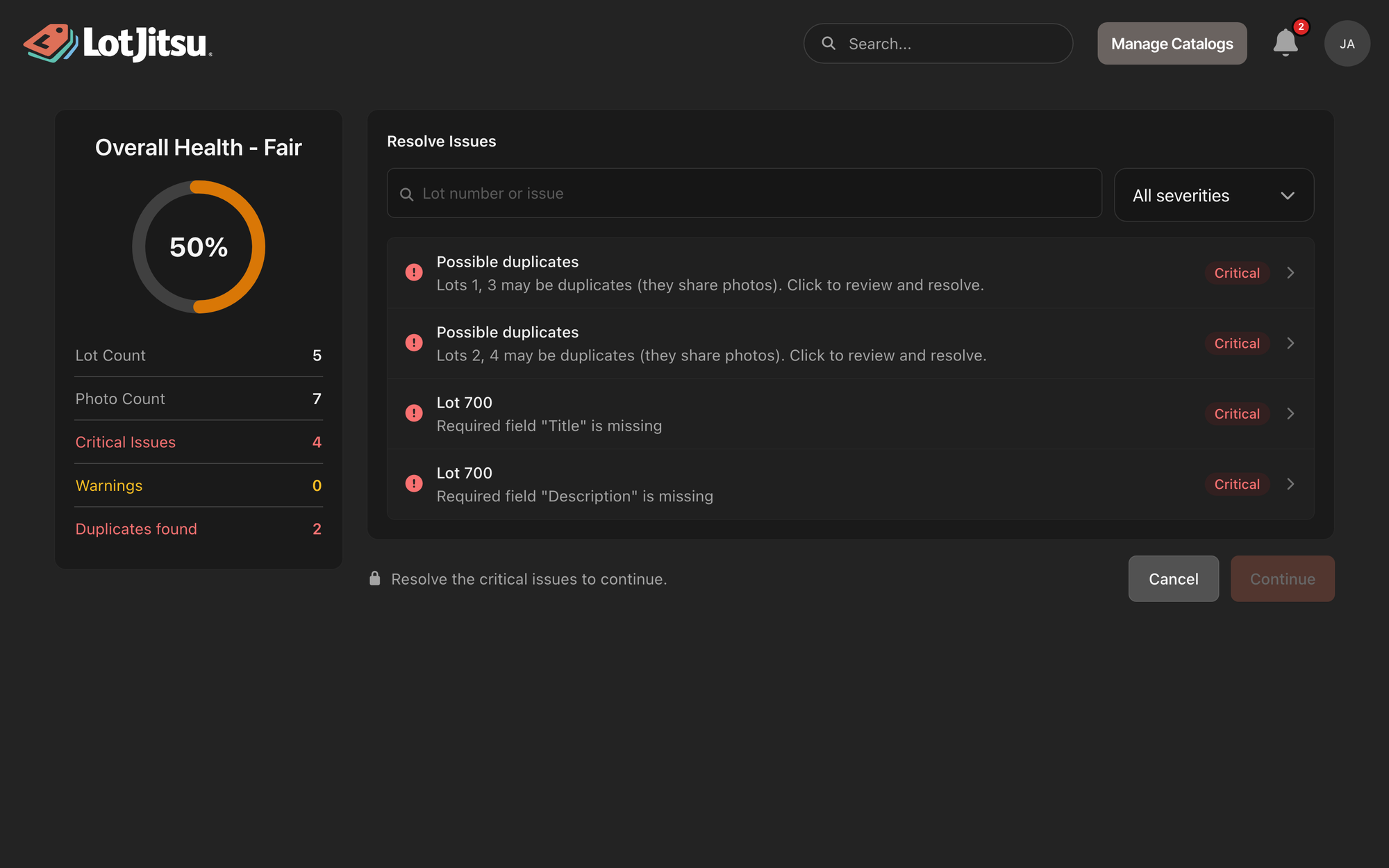
When you start an export, LotJitsu checks every lot against your platform's rules and shows the result as Overall Health. Critical issues must be fixed before you can continue. Warnings don't stop the export, but the listing may not look right on your platform. The check works the same way on your phone and your computer. If the check finds nothing at all (no critical issues, no warnings, no possible duplicates), you never see this step: the export opens on Final Confirmation.
Read Overall Health
The heading shows a rating: Excellent, Good, Fair or At risk, with a percentage in a ring. Below it are five counts: Lot Count, Photo Count, Critical Issues, Warnings and Duplicates found.
- A clean lot counts in full, a lot with only warnings counts half, and a lot with a critical issue counts nothing. The percentage is the average.
- 90 or more is Excellent, 70 to 89 Good, 50 to 69 Fair, and below 50 At risk.
- A high rating does not mean you can export. One critical issue in a big catalog still blocks Continue. Look at Critical Issues, not the colour.
What the info icons say
An info icon sits beside Critical Issues and beside Warnings. Click or tap it to read what the count means. On a computer, press Esc or click outside it to close it; on your phone, tap outside it.
- Critical Issues: "Errors stop the export. Fix every error before you continue. For example: a required field is empty, a lot has no photo or more photos than the platform allows, a number isn't valid, or two lots may be duplicates."
- Warnings: "Warnings don't stop the export, but the listing may not look right on the platform. For example: text longer than the platform allows, or a price with too many decimal places. You can export with warnings."
Fix the issues
- Under Resolve Issues, look at the rows. Each names the lot (for example Lot 12), what is wrong, and a Critical or Warning badge. Critical rows come first.
- To narrow the list, use Filter by severity: All severities, Critical, Warning or Resolved. On a computer you can also search by lot number or word.
- Click or tap a row. The lot opens on top of the export, scrolled to the field or photos that need attention.
- Fix it. On a computer, fields save on their own; close the lot when you are done. On your phone, tap Save.
- The row moves to Resolved. When Critical Issues reads 0, click or tap Continue.
While critical issues remain, Continue is locked and a note says "Resolve the critical issue to continue." (or "issues").
Critical issues (block the export)
| What the row says | What to do |
|---|---|
| Required field "Title" is missing | Fill in the field. A description with only blank formatting counts as empty. |
| Lot must have at least 1 photo | Add a photo. |
| Lot has 12 photos; max is 10 | Delete photos until the lot is within your platform's limit. |
| Quantity must be a whole number | Enter digits only. |
| Starting Bid must be a number | Enter the number without a currency sign. |
| Quantity must be at least 1 | Raise the value. |
| Dimension Unit must be one of: in, ft, cm | Use one of the listed values exactly. |
| Low Estimate must be less than High Estimate | LiveAuctioneers only. Correct the estimates. |
| Starting Price must be at most Low Estimate | LiveAuctioneers only. Lower the starting price, or leave it empty. |
| Possible duplicates | Open the row and decide. See Possible Duplicate Lots. |
Warnings (do not block)
You can export with warnings. Check the listing on your platform afterwards.
| What the row says | What it means |
|---|---|
| Title is too long (71/50 chars) | The text is longer than your platform allows. It exports in full, and your platform may shorten it. |
| Starting Bid can have at most 2 decimal places | Your platform may round it. |
The field names in a row are the ones you see on the lot. Each platform's limits are in Platform reference.
Good to know
- If a catalog has no critical issues, no warnings and no possible duplicates, LotJitsu skips this step and opens Final Confirmation straight away.
- Lots you took out of the export are listed under Removed from this export, with Restore to put one back. They are not checked or counted.
- The check runs again when the build starts. If someone else changed a lot after you checked, LotJitsu stops and tells you how many critical issues remain. Open the export again to see them.
- Resolved only lists what you fixed during this visit. Leaving the export clears it; your fixes are saved.

