

Using a computer? See Accept or decline an invitation on your computer.
When someone shares a folder or catalog with you, you get an email and, if you already have an account, an alert. You answer in the LotJitsu app with Accept or Decline.
Before you start
- Log in with the exact email address the invitation was sent to. No account yet? Sign up with that address first; the invitation will be waiting.
- You need a connection. Offline, the buttons are dimmed.
Answer from the Catalogs page
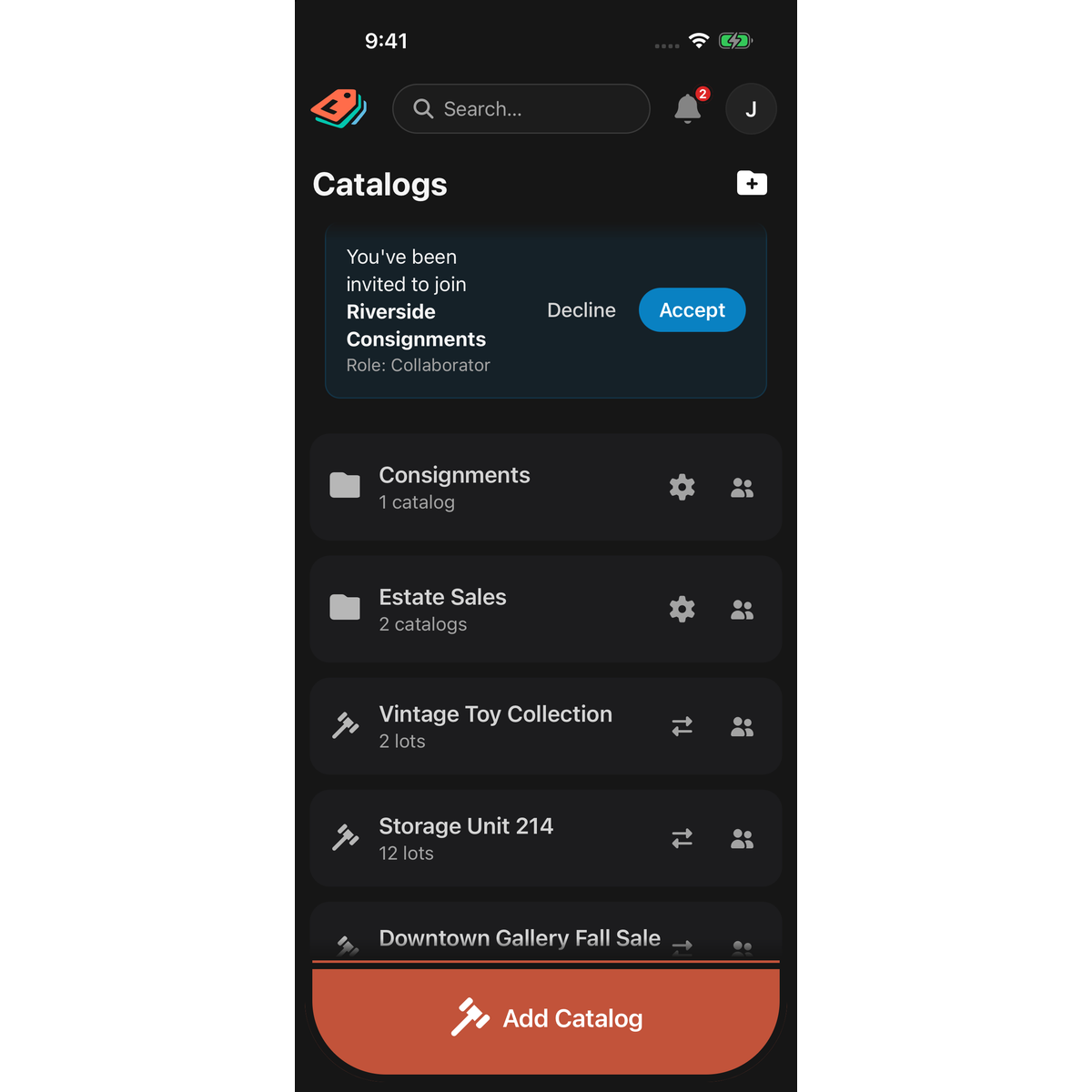
Open the Catalogs page. Each invitation shows as a banner above your list:
- A folder: You've been invited to join and the folder's name, with Role: Collaborator.
- A catalog: You've been invited to collaborate on and the catalog's name, with its folder's name beneath.
Tap Accept or Decline.
Answer from Alerts
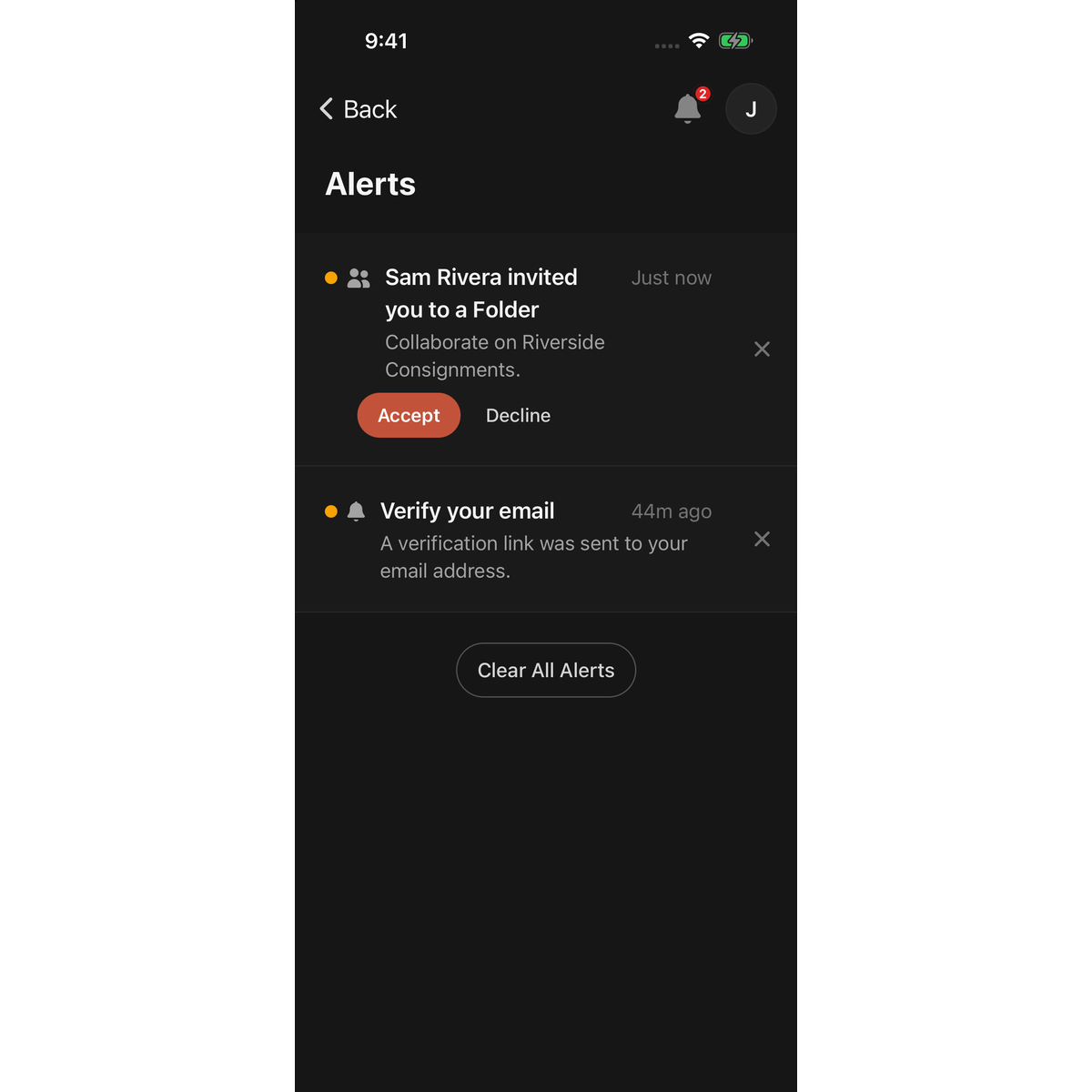
- Tap the bell at the top of the screen.
- Find the invitation alert, for example "Sam Rivera invited you to a Folder".
- Tap Accept or Decline.
Answering in one place removes the invitation from both.
What happens next
- Accept: Joined and the folder's name, or You can now collaborate on and the catalog's name, confirms it. The folder or catalog appears under SHARED WITH YOU on your Catalogs page. See Working in a shared catalog.
- Decline: Invitation declined confirms it. To change your mind, ask the person to invite you again.
If Accept does not work
The banner shows Could not accept invitation whatever the cause. The usual causes:
- The invitation is more than 14 days old. Ask for a new one. Decline still clears the old banner.
- The person who invited you has no room for more collaborators on their plan. Ask them to free a place, then tap Accept again.
Accepting from Alerts says why: This invitation can't be accepted right now. The person who invited you has no room for more collaborators on their plan.
Good to know
- An alert for a catalog invitation reads, for example, "Sam Rivera invited you to a catalog".
- Whether Push is on or off in Notifications, the Alerts list in the app always shows your invitations.
- The invitation email's button reads Open Folder or Open Catalog. It opens the LotJitsu app on a phone that has it installed. A folder invitation explains that collaborators can add, edit and delete lots, and add and edit catalogs, in the folder.

