

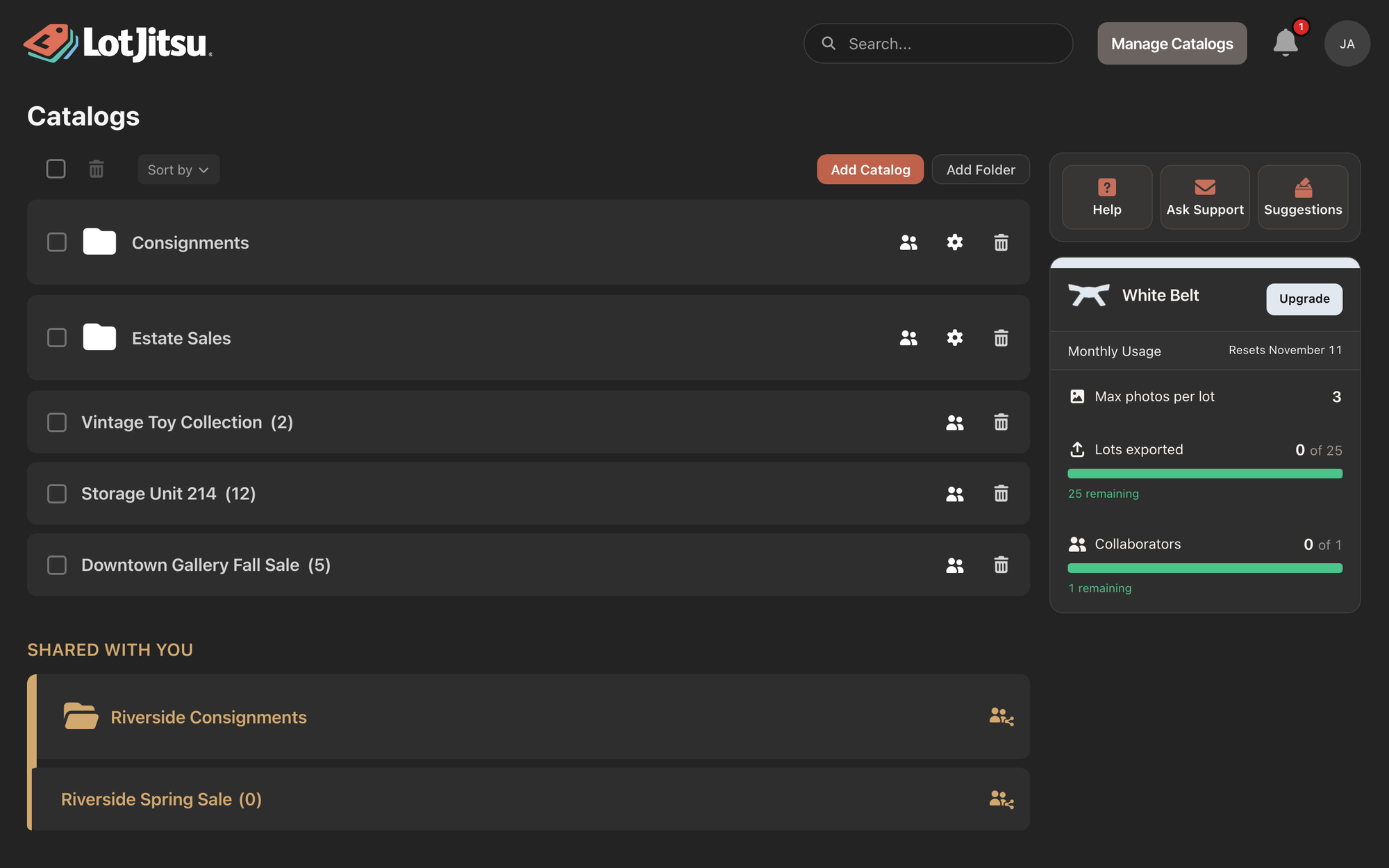
Folders and catalogs other people share with you appear on your Catalogs page under SHARED WITH YOU, below your own. They work the same on your phone and your computer.
What you see
Shared items are drawn in amber. The section can hold:
- A folder you joined. It opens in place like your own folders and shows every catalog in it.
- A folder holding only what was shared with you. If you were given single catalogs inside someone's folder, the folder appears so the catalogs have a home, but it shows only those catalogs.
- A catalog on its own, shared directly with you.
On a computer, a shared catalog's page shows a shared with you label beside its name. On catalogs you own, shared with others shows once someone has accepted access.
What you can do inside
Open a shared catalog and work as you would in your own: add, edit and delete lots, add and remove photos, and change Catalog Settings. Whether you can export, delete or share depends on how it was shared with you. A catalog shared with you on its own cannot be exported, so Export is not offered in it. See Owners and collaborators: who can do what.
Everything you change is saved to the same catalog the Owner and other collaborators use, so they see your changes once they are sent, and you see theirs. If two people edit the same field, the later save wins.
What you cannot do
Shared rows belong to their Owner. You cannot rename, recolor, move, reorder or delete them from the Catalogs page. Trying to drag one shows Catalogs and folders shared with you can only be modified by their owner; tap or click Dismiss.
The people icon on a shared item opens a read-only Collaborators list: you can see who has access and their roles.
Leave a folder or catalog
- Open the people icon on the shared folder (if you joined a folder) or on the shared catalog (if it was shared on its own).
- Tap or click Decline Access at the bottom of the list.
- Confirm with Decline Access. On a computer you can click Cancel instead; on a phone, swipe the sheet down to back out.
A message such as "Access to Estate Sales declined" confirms it, and you return to your Catalogs page. You lose access until the Owner invites you again.

Good to know
- If you joined a folder, leave from the folder's list. A catalog inside it has no Decline Access link.
- A co-owner has no Decline Access link. Remove yourself with the X on your own row instead, which is possible while another Owner exists.
- On a phone, the confirmation for a single catalog asks "Decline access to this catalog?".
- In the app, a shared-folder page with nothing visible to you reads "No catalogs have been shared with you in this Folder."
- On a phone, sharing controls and Decline Access need a connection.
- If a shared folder or catalog disappears, the Owner removed you or deleted it. Ask them.

