

When an export finishes, the app saves the package as a ZIP file. You choose where to save it on your phone. You will upload that file to your auction platform yourself; LotJitsu never connects to your platform for you.
Download the package
- Right after exporting: on Export Complete, tap Download ZIP.
- Later: tap your picture in the header to open the account menu, tap History, and tap Download beside the package under Exports.
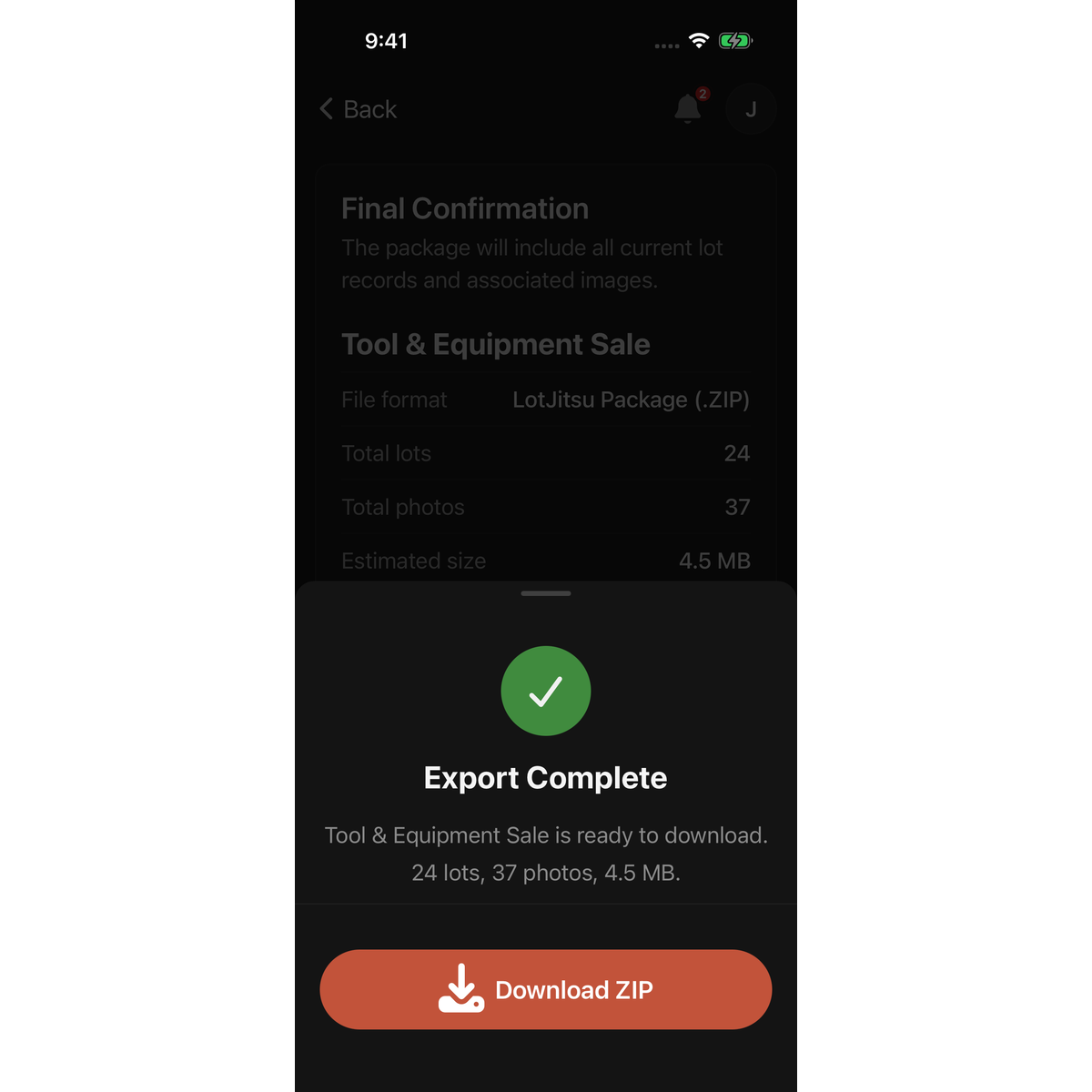
On iPhone or iPad
The share sheet opens with the ZIP file.
- Tap Save to Files.
- Choose a folder, such as On My iPhone or iCloud Drive, and tap Save.
You can also send it straight to another app or to a computer from the same sheet, for example with AirDrop or Mail.
On Android
A sheet headed Download package asks where it should go.
- Save to Device: choose a folder on your phone and allow LotJitsu to use it. The file is copied there, and a message tells you where it was saved.
- Share…: opens Android's share sheet, so you can send the file to an app such as Google Drive or email.
Good to know
- Downloading needs a connection. With no connection, Download in History is greyed out.
- To get the file onto a computer for uploading, save it to a cloud folder you can open on that computer, or send it to yourself.
- What's inside the ZIP: see What's in your export package. Uploading it: see Upload your package to your auction platform.

