

LotJitsu checks for a newer version each time you open and use the app.
When an update is available
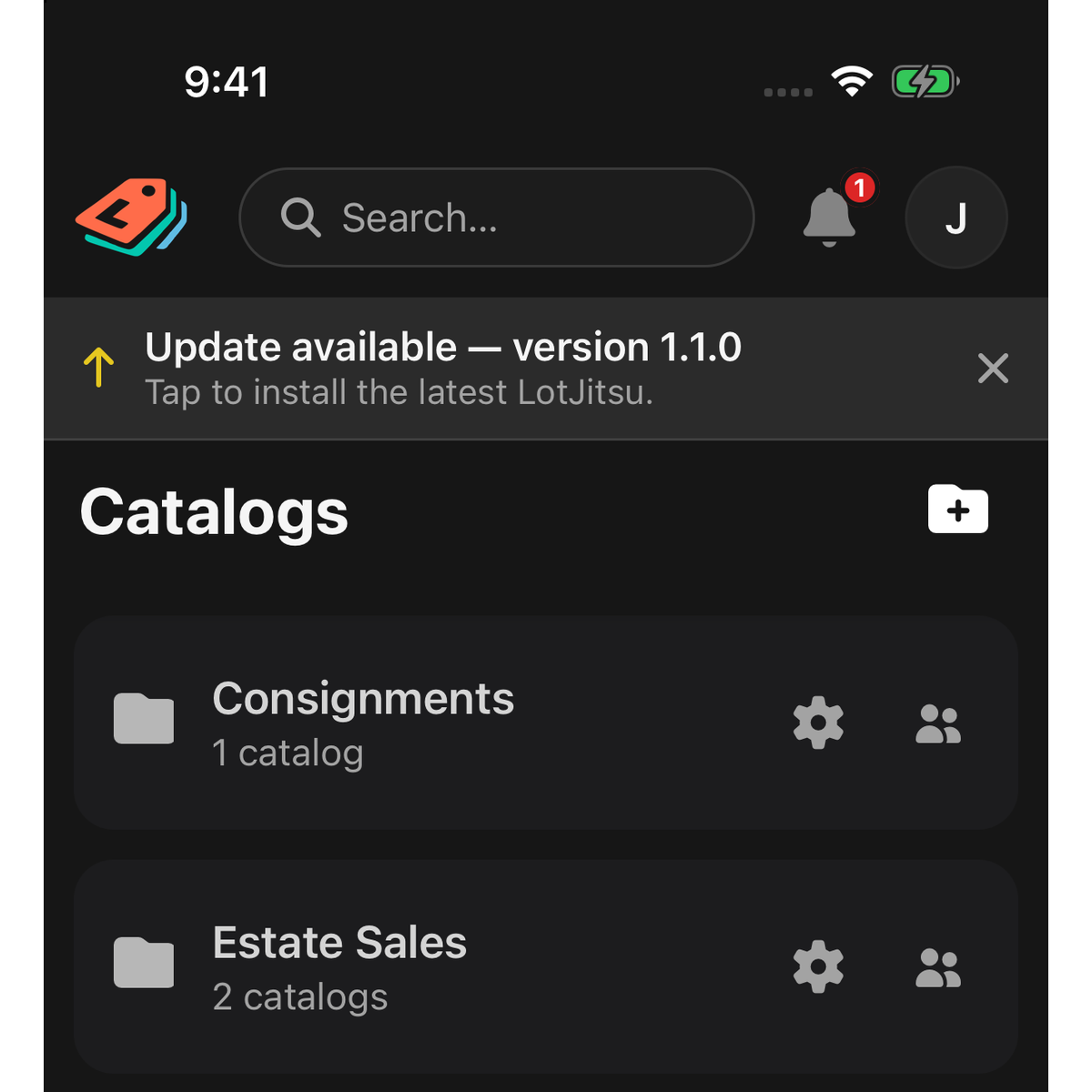
A dark strip appears under the header, saying an update is available with the new version number, and "Tap to install the latest LotJitsu."
- Tap the strip to open the install page.
- Install the update, then open LotJitsu again.
Tap the × on the strip to hide it. It stays hidden for that version and comes back when the next one is released.
When an update is required
If your version is no longer supported, the whole app is replaced by a screen headed Update required. It says your saved lots and photos are safe and shows "You have your version · latest is new version". Nothing else in the app works until you update.
- Tap Install Update.
- Install the update, then open LotJitsu again.
If there is no Install Update button, update the app from your phone's store:
- iPhone or iPad: open the App Store, tap your picture at the top right, scroll to the list of updates, and tap Update next to LotJitsu.
- Android: open Google Play, tap your picture at the top right, tap Manage apps & device, then tap Update next to LotJitsu.
You can also search for LotJitsu in the store and tap Update on its page.
Check which version you have
Tap your picture in the header to open the account menu, tap Settings, and scroll to the bottom. The last line shows the version, with the build number in brackets.
Good to know
- Update in place. Don't delete the app first: deleting it erases any lots and photos not yet sent to your account.
- Updating needs a connection. Before a day without signal, install any waiting update. See Prepare your phone for a capture session.
- After update, close LotJitsu fully and open it again to load new version.

