

On an iPhone or iPad, LotJitsu is an app. This article shows how to install it and get to your catalogs.
Using an Android phone? See Get the LotJitsu app on your Android phone.
Steps
- On your iPhone or iPad, open the App Store, search for LotJitsu, and tap Get.
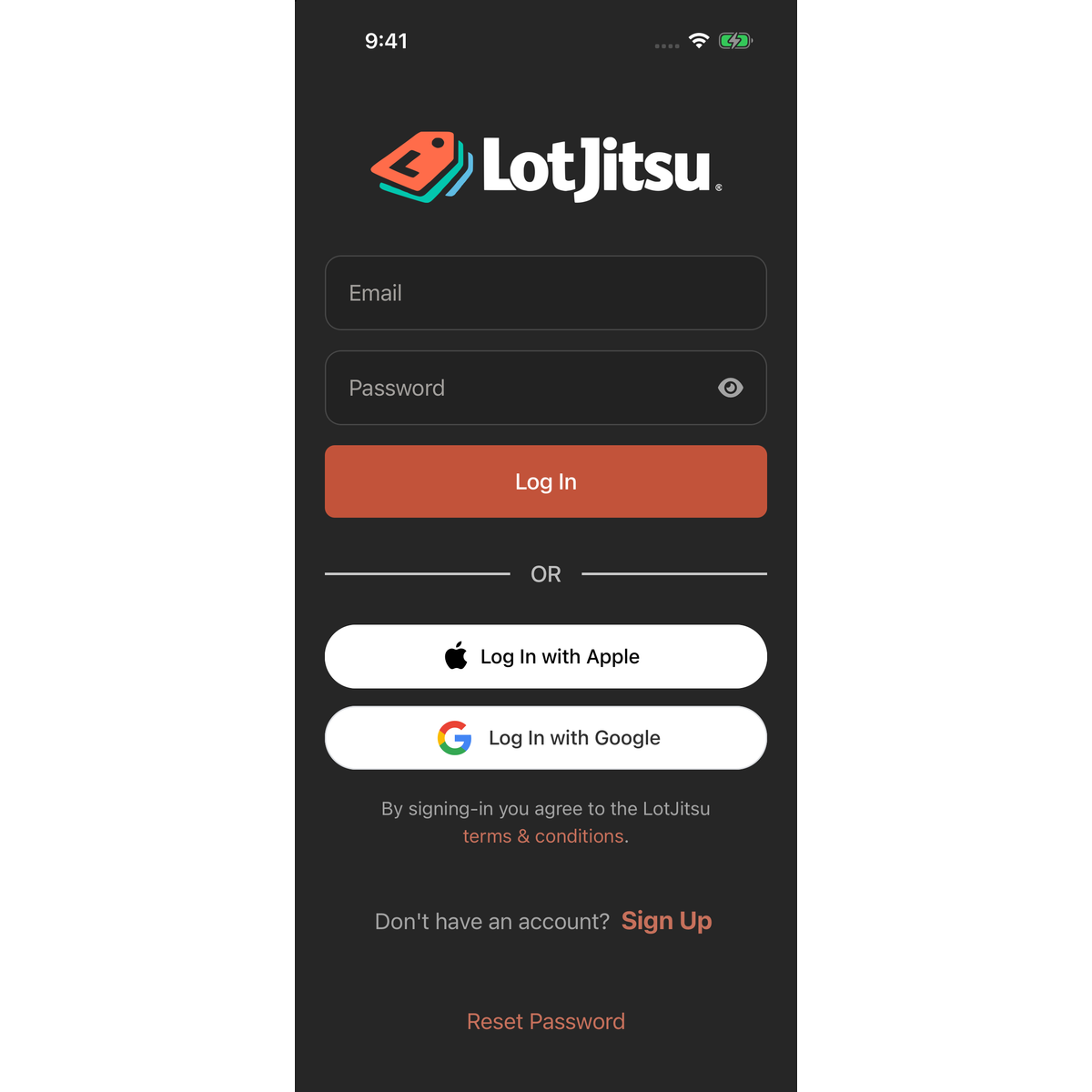
- When it has installed, tap Open. The Log In screen appears.
- If you already have an account, enter your Email and Password and tap Log In. If you don't, tap Sign Up.
When you are logged in, the app opens on your Catalogs page.
The "Install LotJitsu on your mobile device" email
If you created your account on a computer, LotJitsu emails you a few hours after you verify your email address, with the subject "Install LotJitsu on your mobile device". Open it on your iPhone and tap Start App Setup to reach the download buttons. You don't get this email if you have already logged in to the app.
Opening app.lotjitsu.com in Safari
The web version of LotJitsu does not run in a phone's browser. If you open app.lotjitsu.com on an iPhone, you see a Download the App page with the store badges instead. Use the app.
With the app installed, tapping a LotJitsu link in an email, such as a verification or password reset link, opens the app.
Good to know
- The app works on iPhone and iPad with iOS 16.4 or later. On iPad it uses the same layout as the phone, in portrait.
- The same account works in the app and on your computer.
- The app asks for camera and photo library access the first time you need them. See Allow camera and photo access on iPhone.
- To keep the app current, see Update the LotJitsu app.

