

The Settings page holds your timezone, the usage analytics switch, the LotJitsu line on lot descriptions, your notification choices, and the controls to download your data or delete your account. Each setting saves as soon as you change it.
Using the phone app? See Settings in the app.
Open Settings
- Click your photo or initial at the top right of the header.
- Click Settings.
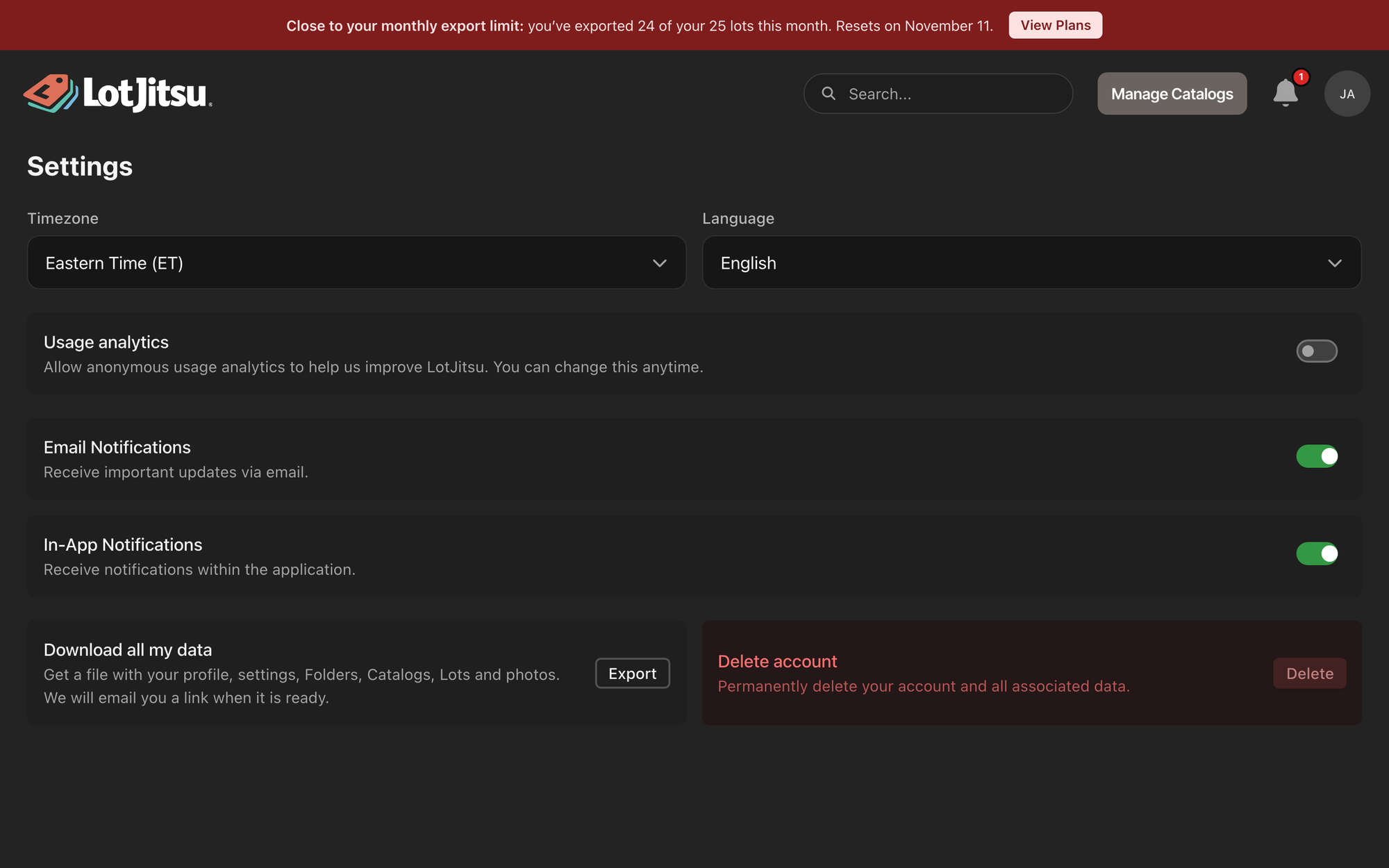
Timezone
Timezone sets the zone every date and time in LotJitsu is shown in, such as your History and your plan's reset date. Choose one of:
- Eastern Time (ET)
- Central Time (CT)
- Mountain Time (MT)
- Pacific Time (PT)
- Alaska Time (AKT)
- Hawaii Time (HT)
- Greenwich Mean Time (GMT)
- Central European Time (CET)
- Japan Standard Time (JST)
- Australian Eastern Time (AET)
If you haven't chosen a zone, LotJitsu fills one in from your device the first time you log in. You can change it at any time.
Usage analytics
The Usage analytics switch reads "Allow anonymous usage analytics to help us improve LotJitsu. You can change this anytime." Turn it on to allow anonymous analytics, off to stop them. It is off unless you have allowed it.
The first time you use LotJitsu in a browser, a bar at the bottom of the page says "A quick note about cookies." Click Accept or Decline. The switch on Settings changes the same choice later. The bar's Privacy Policy link opens the policy at lotjitsu.com/privacy.
The LotJitsu line on lot descriptions
The Add 'Created using the LotJitsu App' to lot descriptions switch decides whether your export packages end each lot description with a LotJitsu line: "Catalog created using the LotJitsu App" on a General Purpose catalog, or "Auction catalog created using the LotJitsu App" on a catalog set to an auction platform. Only the account owner sees it.
- On the free White Belt plan the line is always added. The switch shows on and can't be changed, with the note "Paid plans can turn this off."
- On a paid plan the line is off unless you turn it on.
- Changing your plan, up or down, puts the switch back to that plan's starting setting.
- The line is added only to the package. Your lots never change, and the switch applies to your next export.
See What's in your export package.
Notifications
The switches for Email Notifications and In-App Notifications are on this page too. See Alerts and notifications on your computer.
Your data and your account
- Download all my data: click Export. See Download a copy of your data.
- Delete account: click Delete. See Delete your account on your computer.
Good to know
- There is no Save button. If a change can't be saved, a message says so and the setting goes back.
- Settings are part of your account, so they follow you to the app.

