

Using a computer? See Search your folders, catalogs and lots on your computer.
The Search… bar at the top of the screen finds folders, catalogs and lots by name and opens them directly. It searches your own work and anything shared with you.
Steps
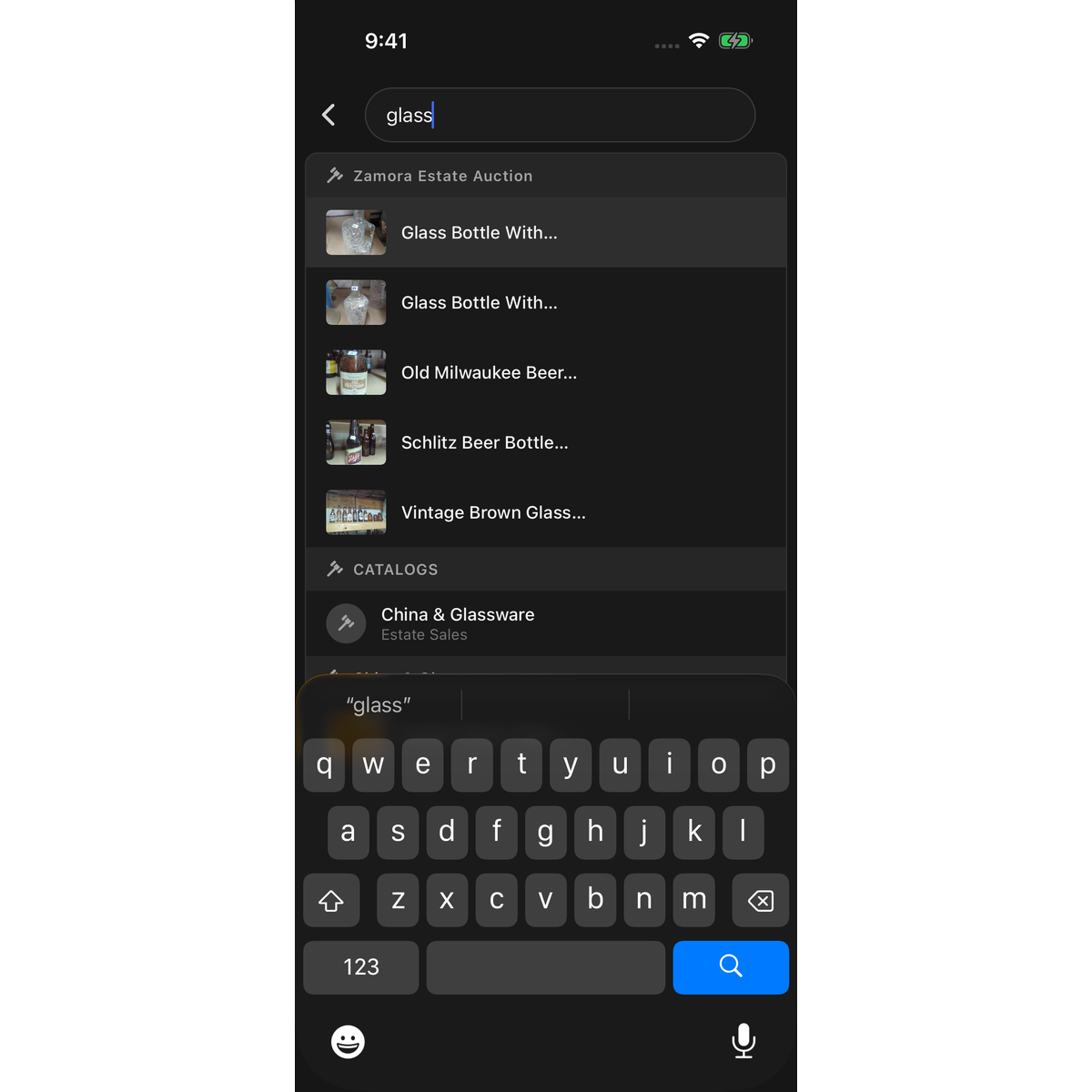
- On the Catalogs page or a catalog's page, tap Search… at the top of the screen. A full-screen search opens with the keyboard ready.
- Type a word or part of a word. Results appear as you type; Searching... shows while they load.
- Tap a result. Or tap the keyboard's search key to open the first result.
To close search without choosing anything, tap the back arrow at the left of the field.
What search finds
- Folders whose name contains what you typed.
- Catalogs whose name contains it.
- Lots whose title or description contains it. Lots are grouped under the name of their catalog and show their cover photo.
What a result opens
- A folder: the folder's own page, listing its catalogs. Tap Add Catalog there to create a catalog inside that folder. Tap Back to return.
- A catalog: the catalog's page.
- A lot: the lot itself.
Good to know
- Search requires a connection. Without a signal it cannot find anything.
- No results found means nothing you own matches your keyword. Try a shorter word.

