

Using a computer? See Add a lot on your computer.
A lot is one item, or a group of items sold together. In the LotJitsu app you start a lot using the camera, then check its Lot Number and approve the text LotJitsu writes from your photos.
Steps
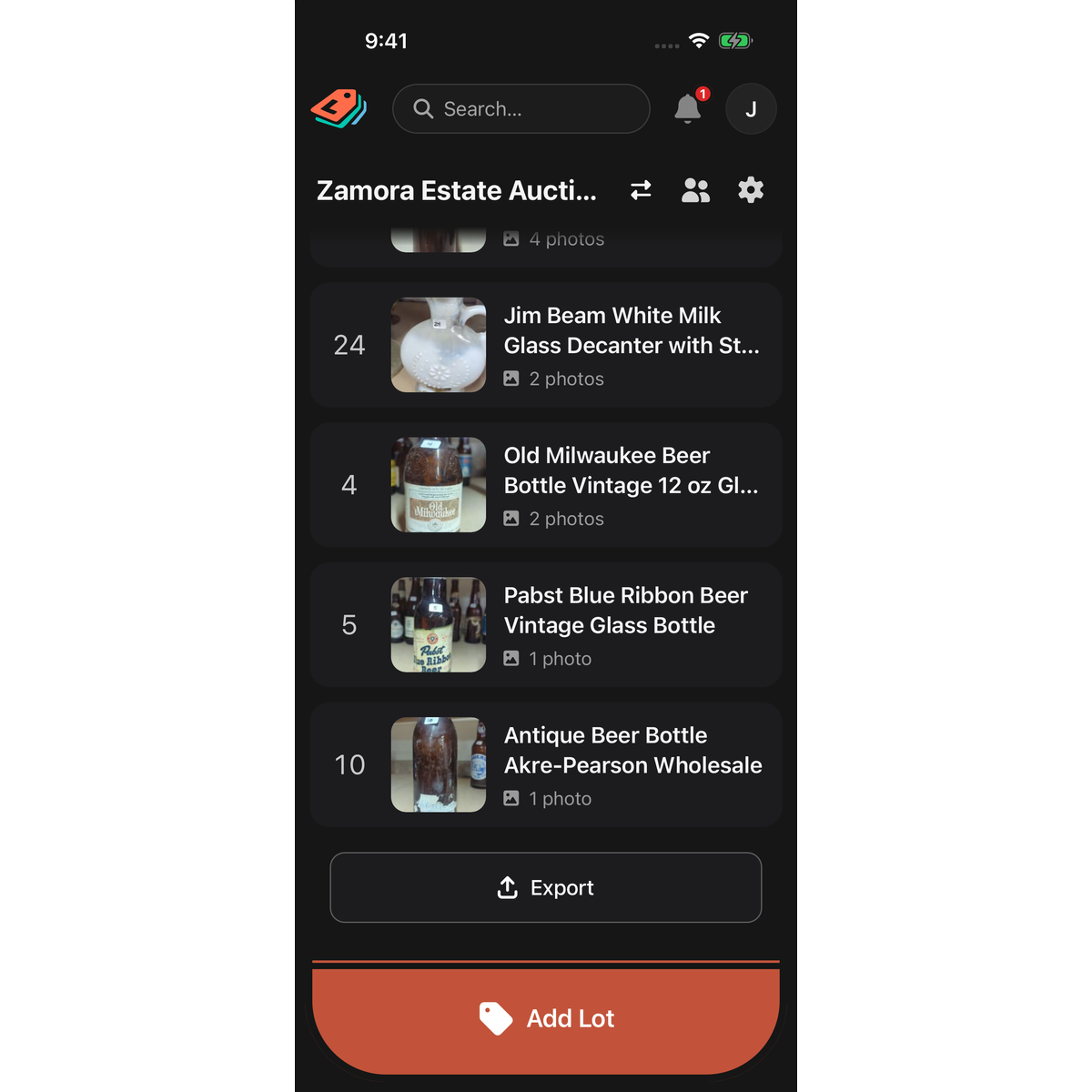
- Open the catalog and tap Add Lot at the bottom of the screen. In a catalog with no lots yet, you can also tap anywhere in the empty page.
- The first time you add a lot to a catalog, the app asks how you want to work. Tap Go Fast - Review As-you-go under Standard to review each lot before it saves. See Standard or Fast Entry Mode on your phone for the other choice.
- The camera opens. Tap the round shutter for each photo, or tap the photo library button at the bottom left to add photos already on your phone. See Use the camera.
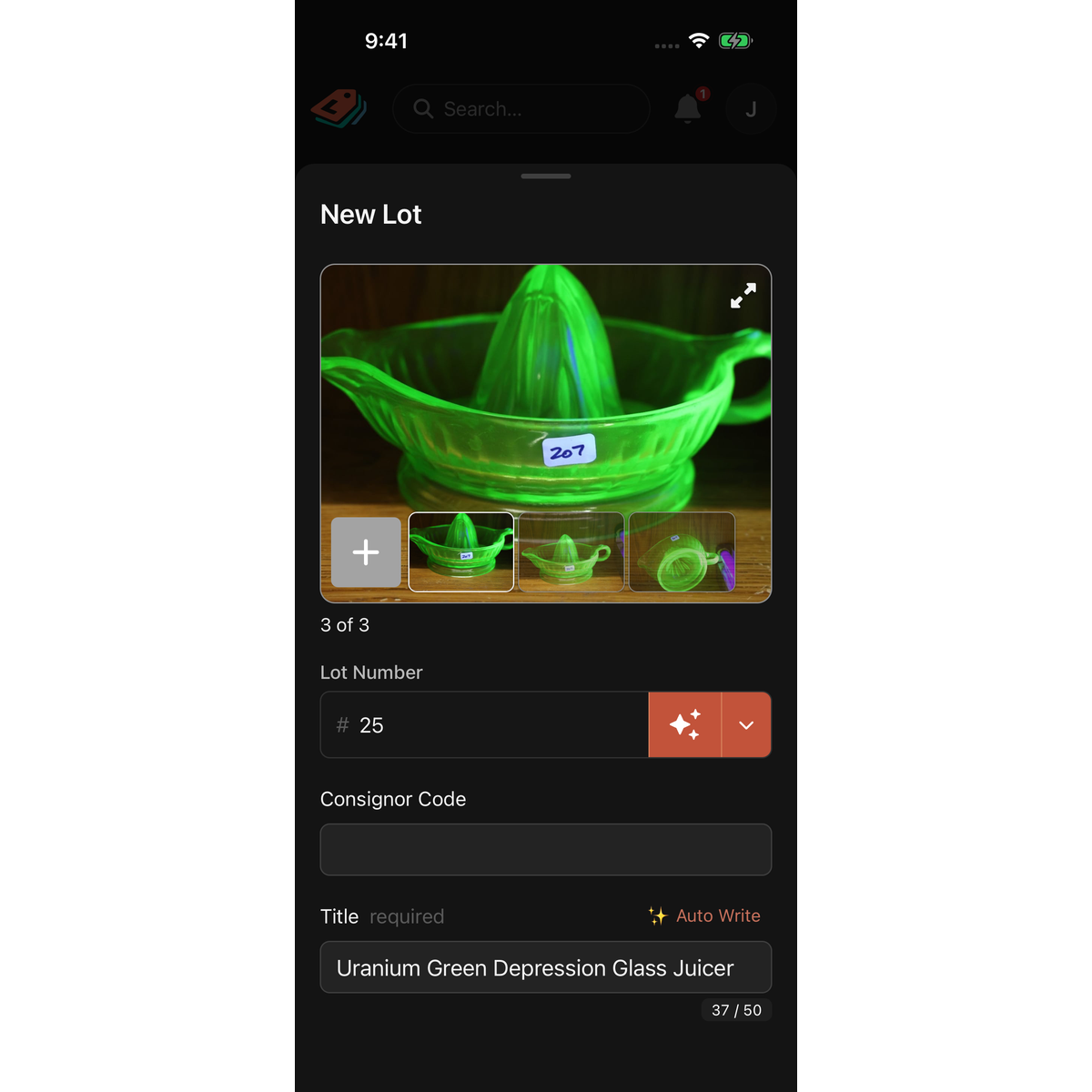
- Tap Continue. The New Lot sheet opens with your photos at the top, the Lot Number below them, and the catalog's fields below that.
- Check the Lot Number. LotJitsu fills it in for you; type over it to change it.
- Wait while LotJitsu writes the fields from your photos. Fields set to Auto fill in on their own.
- Read the text and fix anything that is wrong. Fill in every field that says required after its name.
- Tap Confirm Details. The sheet closes and the new lot flashes in the lot list.
Good to know
- Confirm Details stays greyed out until LotJitsu has finished writing, so you never save empty fields by accident.
- If a required field is empty, the app shows "Field is required" under it and scrolls to it. Fill it in and tap Confirm Details again.
- To crop, rotate or delete a photo before you confirm, tap the large photo to open the photo viewer. This works without a connection. LotJitsu keeps each photo as you took it, so you can crop it again or use Reset to original later. See Cover photo, reorder, crop, rotate and delete photos on your phone.
- Cancel throws away the lot you are adding and its photos straight away, with no confirmation. Swiping the sheet down does the same. Lots you already confirmed are kept.
- If the number is already used in the catalog, a screen headed Lot N already exists asks what to do. See Lot numbers on your phone.
- There is no limit on how many lots you add. Your plan's monthly allowance counts lots when you export, not when you add them.
- With no connection, the app still saves the lot. You see Lot N Added with a note that uploads and writing run when you are back online. The lot's fields stay empty until then. See Work without a connection.
- After merging photos into an existing lot, the finished screen has a Back to Catalog button. It returns you to the catalog's lot list, where you can tap the lot to open it.

