

Using a computer? See Fast Entry Mode on your computer.
The app has two Capture Modes. Standard shows you the text LotJitsu writes before each lot saves. Fast Entry Mode saves each lot as soon as you approve its photos and number, and writes the text in the background so you can move straight to the next item.
Choose a mode
When you tap Add Lot in a catalog that has no lots yet, a sheet asks which mode to use. A catalog that already has lots opens the camera straight away.
- Read the two cards:
- Standard: tap Go Fast - Review As-you-go.
- Fast Entry Mode: tap Go Faster - Review Later!
- The camera opens in the mode you chose.
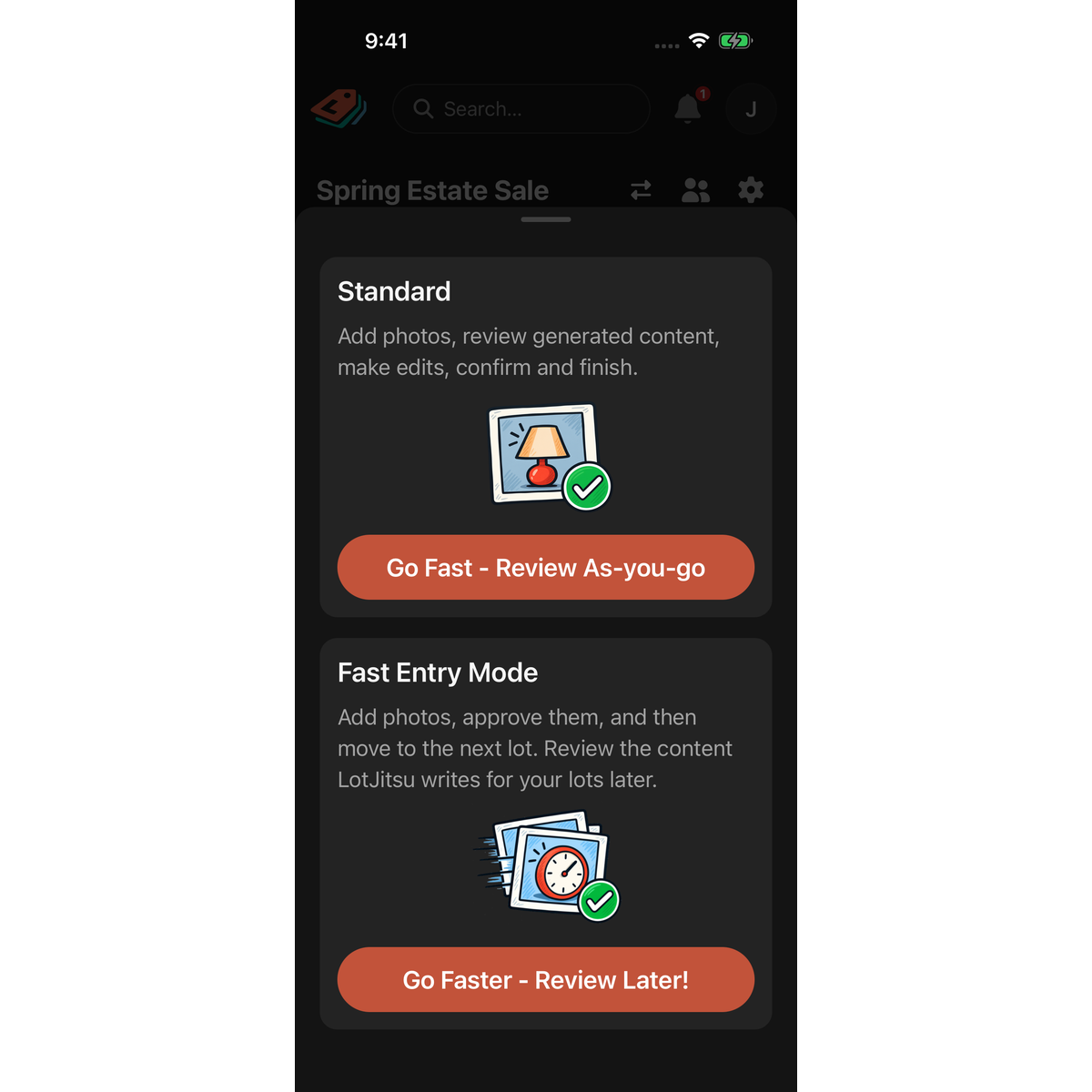
If you close the sheet without choosing, nothing is saved and it asks again next time.
Change the mode later
- On the camera: tap the Fast Entry Mode switch at the top of the screen. Tap the ⓘ next to it to read What is Fast Entry Mode?
- In Catalog Settings: tap the gear on the catalog page, turn Fast Entry Mode on or off, then tap Save.
Add lots in Fast Entry Mode
- Take the photos and tap Continue.
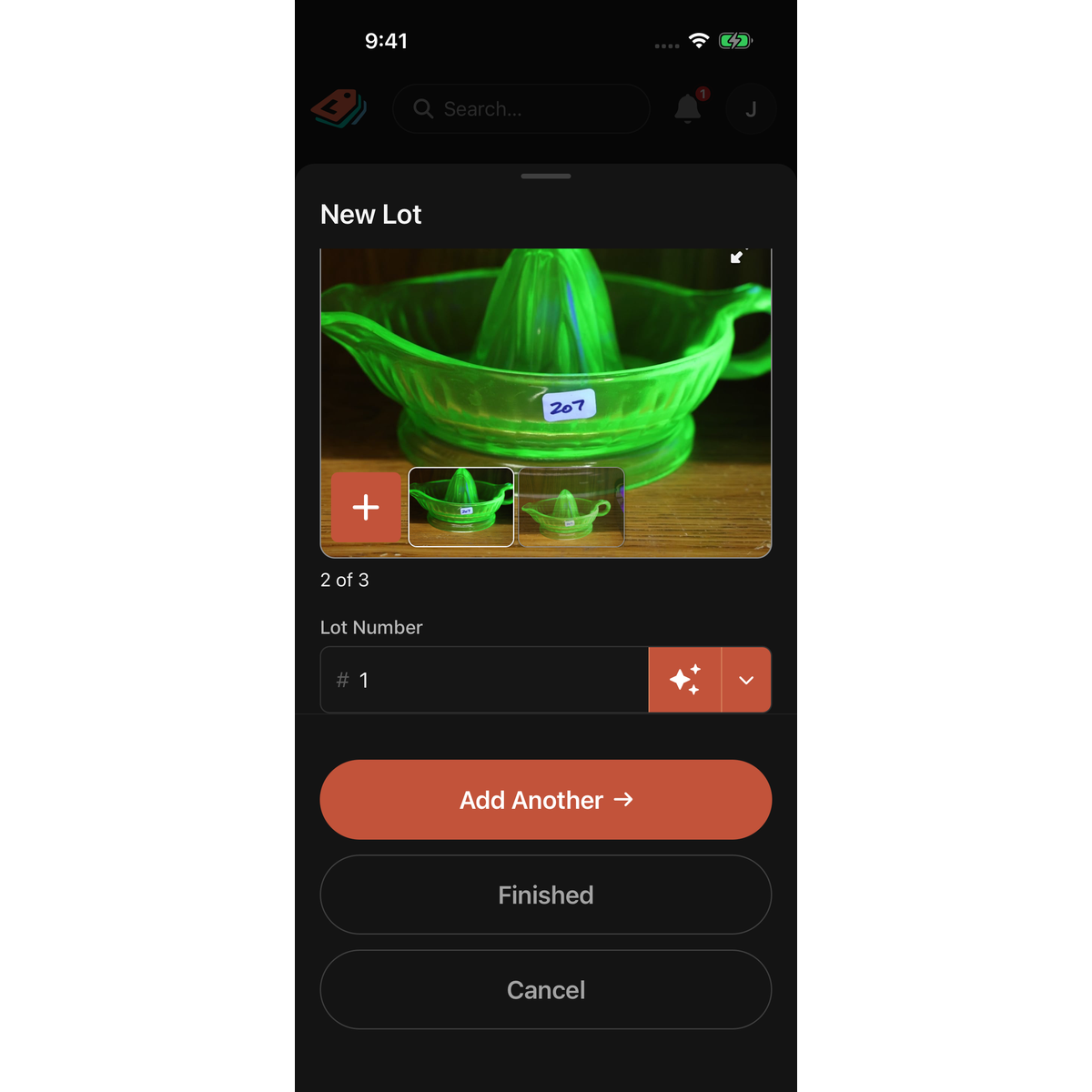
- In the New Lot sheet, check the photos and the Lot Number. There are no fields to review.
- Tap Add Another. A message reads "Lot N added" and the camera opens for the next lot.
- When you are done, tap Finished to save the lot on screen and go back to the catalog.
Good to know
- The mode is saved for each catalog, on this phone only. One catalog can use Fast Entry Mode while another uses Standard, and another phone asks its own question. A catalog you never chose for follows the Use Fast Entry Mode switch on your computer.
- After a Fast Entry save, the lot's row is faded with a moving three-square symbol while its photos upload and its text is written. You can't open, delete or move it until it clears, usually within seconds. The lot is already saved, so don't add it again.
- Keep the app open until the faded rows clear.
- Cancel throws away the lot on screen and its photos, with no confirmation. Lots you already added are kept.
- With no connection, the message reads "Lot N queued" instead. The lot, its photos and the writing are sent when you are back online. See Work without a connection.
- Review Fast Entry lots later by opening each one. See Edit a lot and rewrite it with Auto Write on your phone.

