

Using a computer? See Edit a lot on your computer.
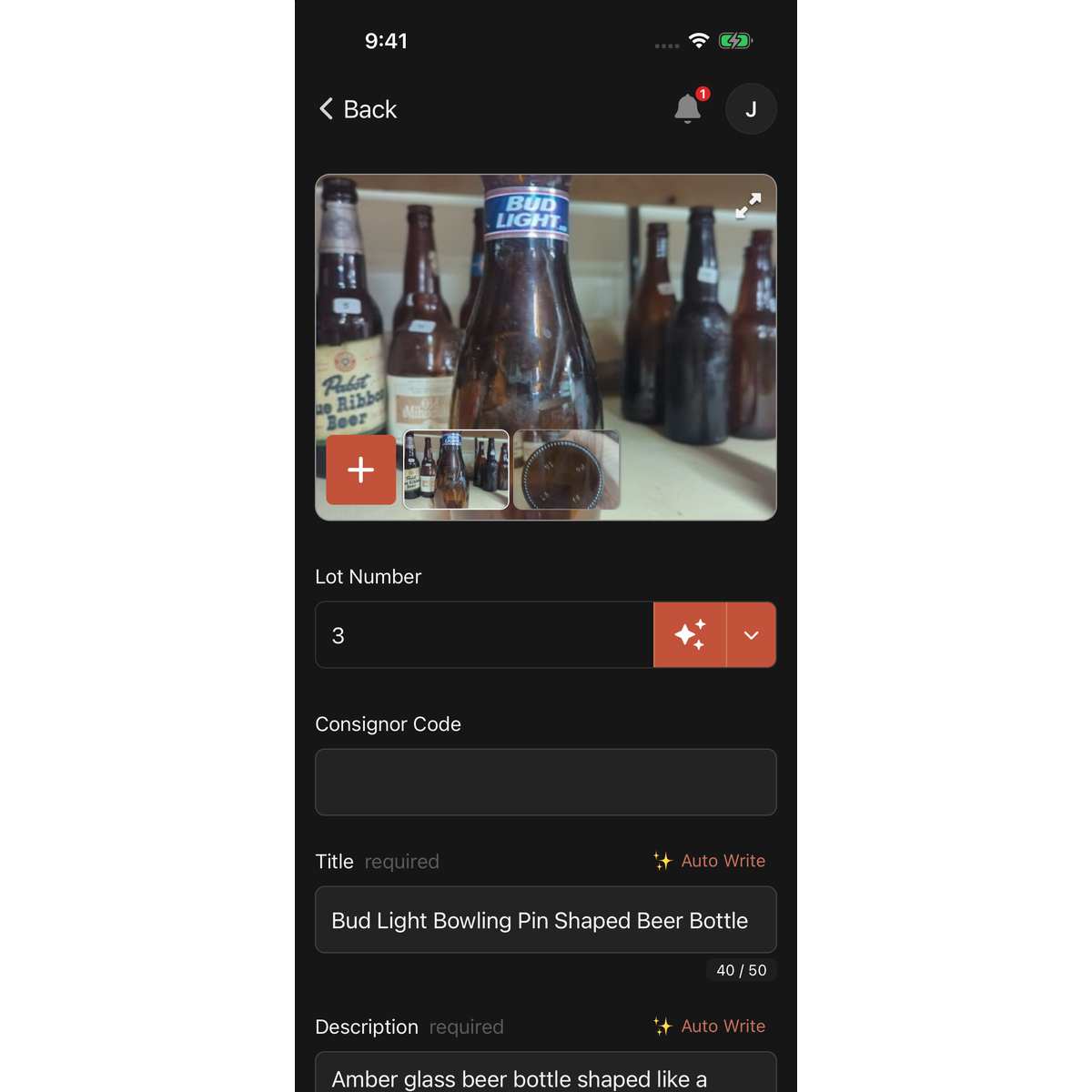
Open a lot to change its text, its Lot Number or its photos. In the app, text changes are kept on the screen until you tap Save. Auto Write asks LotJitsu to write a field again from the photos.
Edit a lot
- Open the catalog and tap the lot.
- The page shows the photos, then the Lot Number, then one box for each field the catalog collects.
- Change any text you want.
- Tap Save at the bottom of the page. The button reads Saving… until it finishes, then the page closes.
Rewrite a field with Auto Write
Fields set to Auto in the catalog's settings have an Auto Write button next to their name.
- Tap Auto Write beside the field.
- Wait while the field is covered by a moving three-square symbol. You can't type in it meanwhile.
- The new text appears and is saved straight away. You don't need to tap Save for it.
Auto Write replaces whatever is in the field, including text you typed, without asking. The old text is not kept.
You can run Auto Write on several fields at once.
Good to know
- Leaving without saving: tap Cancel, the back arrow, or Android's back button. If you changed anything, Discard changes? asks first. Tap Discard to leave, or dismiss it to keep editing.
- Required fields: a field that must be filled in says required after its name. Save won't finish while one is empty: the field shows "Field is required" and the page scrolls to it. If LotJitsu is still writing that field, you see "Auto Write is still writing Field". Wait, then save.
- Photos save at once: adding, reordering, cropping, rotating, resetting or deleting a photo, or changing the cover, takes effect straight away. Cancel doesn't undo it. To undo a crop or rotation, use Reset to original in the photo viewer. Crop, rotate and Reset to original need a connection here: their buttons are dimmed while you are offline. See Cover photo, reorder, crop, rotate and delete photos on your phone.
- Auto Write needs photos and a connection. With no photos you see "Add at least 1 photo to generate content using AI."
- Nothing to generate: if LotJitsu can't write that field from your photos, a Nothing to generate message explains why. Tap Ok, then try a clearer photo or type the text yourself.
- Saving offline: Save works with no connection. The changes are sent later. See Work without a connection.
- Delete: tap Delete at the bottom of the page, then Delete on Are you sure? ("This lot and its photos will be deleted."). A deleted lot can be restored from History for 30 days.
- Error Code: 1010 - Support Team Notified means LotJitsu's writing is paused. Support has already been told, so no action is needed. Try again later.
- What to check in the text LotJitsu writes: see Review the text LotJitsu writes.

