

Using the phone app? See Cover photo, reorder, crop, rotate and delete photos on your phone.
On your computer, a lot's photos come from image files. You manage them in the Add Lot window and on the lot's page, with the same controls in both places.
Add photos
- With no photos yet, click the Add Photos area ("Click anywhere or drag your photos.") and choose one or more files, or drag files onto it.
- Once the lot has photos, click the + tile at the left of the thumbnails to add more.
Each photo shows its upload progress as a percentage on its thumbnail.
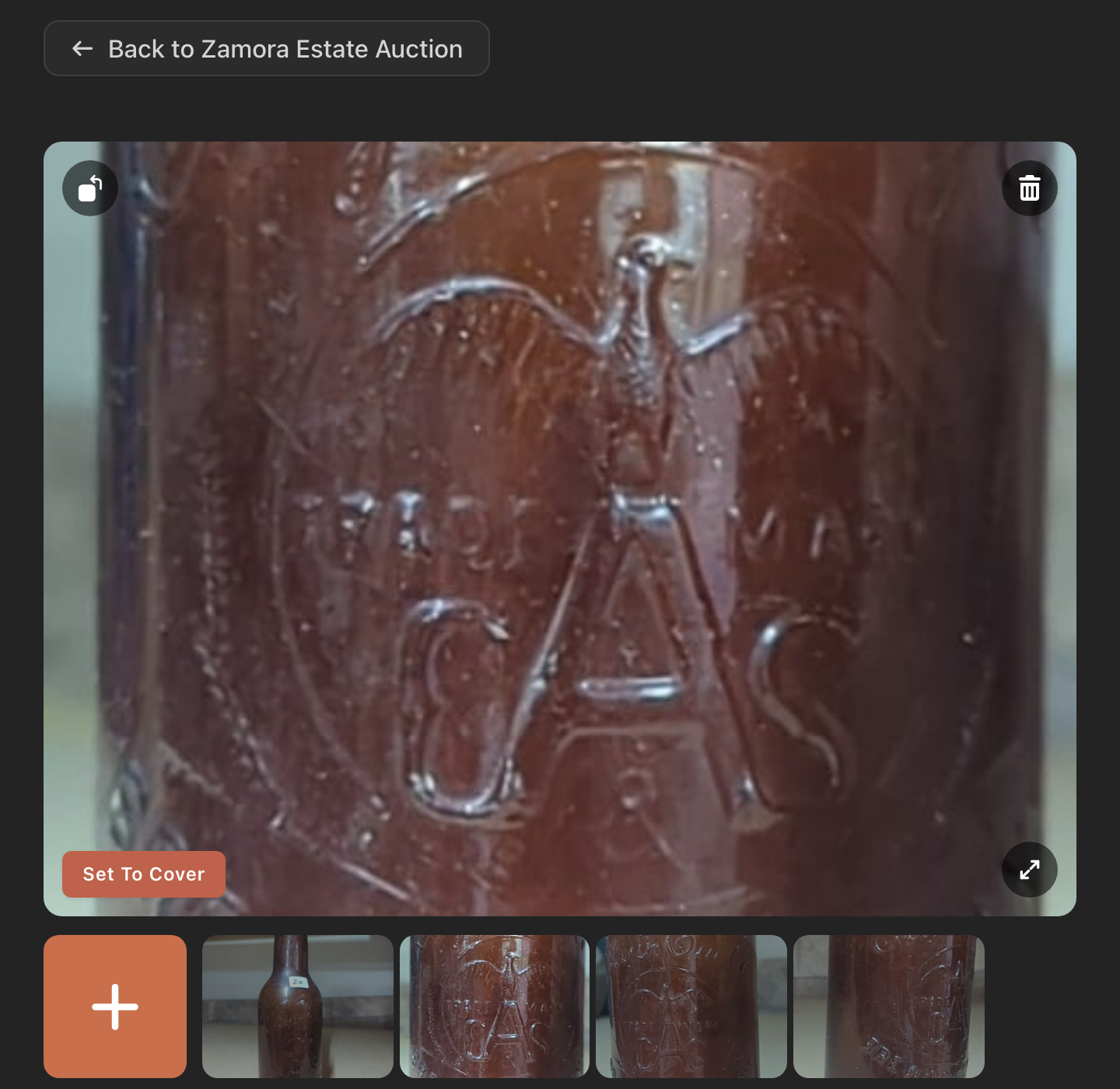
Make a photo the cover
The first photo carries a Cover Photo badge. It is the thumbnail in your lot list, the first photo LotJitsu reads when it writes, and the first image in your export.
- Click the photo's thumbnail.
- Click Set To Cover on the large photo. The photo moves to the front.
You can't drag photos into a different order. Set To Cover is the only way to move one.
View, rotate or delete a photo
- View full size: click the large photo, or its expand button. The full view shows the whole photo. Use the left and right arrow keys to move between photos.
- Rotate: click the rotate button at the top left of the large photo. Each click turns it a quarter turn to the left.
- Delete: click the trash button at the top right. On Are you sure? ("This removes the photo from this lot. This can't be undone."), click Delete photo. If you delete the cover, the next photo becomes the cover.
Limits
- File types: JPEG, PNG, WebP, GIF, HEIC and HEIF.
- File size: up to 20 MB per photo.
- Photos per lot: up to 150, and your plan may allow fewer.
Your browser shrinks each photo before it uploads, and LotJitsu stores it cropped to a centred 4:3 shape (3:4 for an upright photo). Leave a little space around the item so nothing important is cut off.
Good to know
- If you reach your plan's limit while adding a lot, you see "Your plan allows N photos per lot." A count such as "3 of 5" shows how many you have used.
- On the lot's page, a refused photo shows a message that starts with its file name.
- If the connection drops mid-upload, you see "file name: upload failed. Could not reach the server." Reconnect and add it again.
- There is no crop control on your computer. To crop a lot photo, use the phone app, or crop the file before you upload it.
- No control moves a photo to another lot. Delete it from the wrong lot and add it to the right one.

