

Using a computer? See Add, arrange and remove photos on your computer.
Most photo controls in the app live in the full-screen photo viewer, which works the same way in the New Lot sheet and when you edit a lot. To change the order of a lot's photos, drag their thumbnails while you edit the lot.
Open the photo viewer
- Open a lot, or start a new one.
- Tap a thumbnail to show it as the large photo, then tap the large photo.
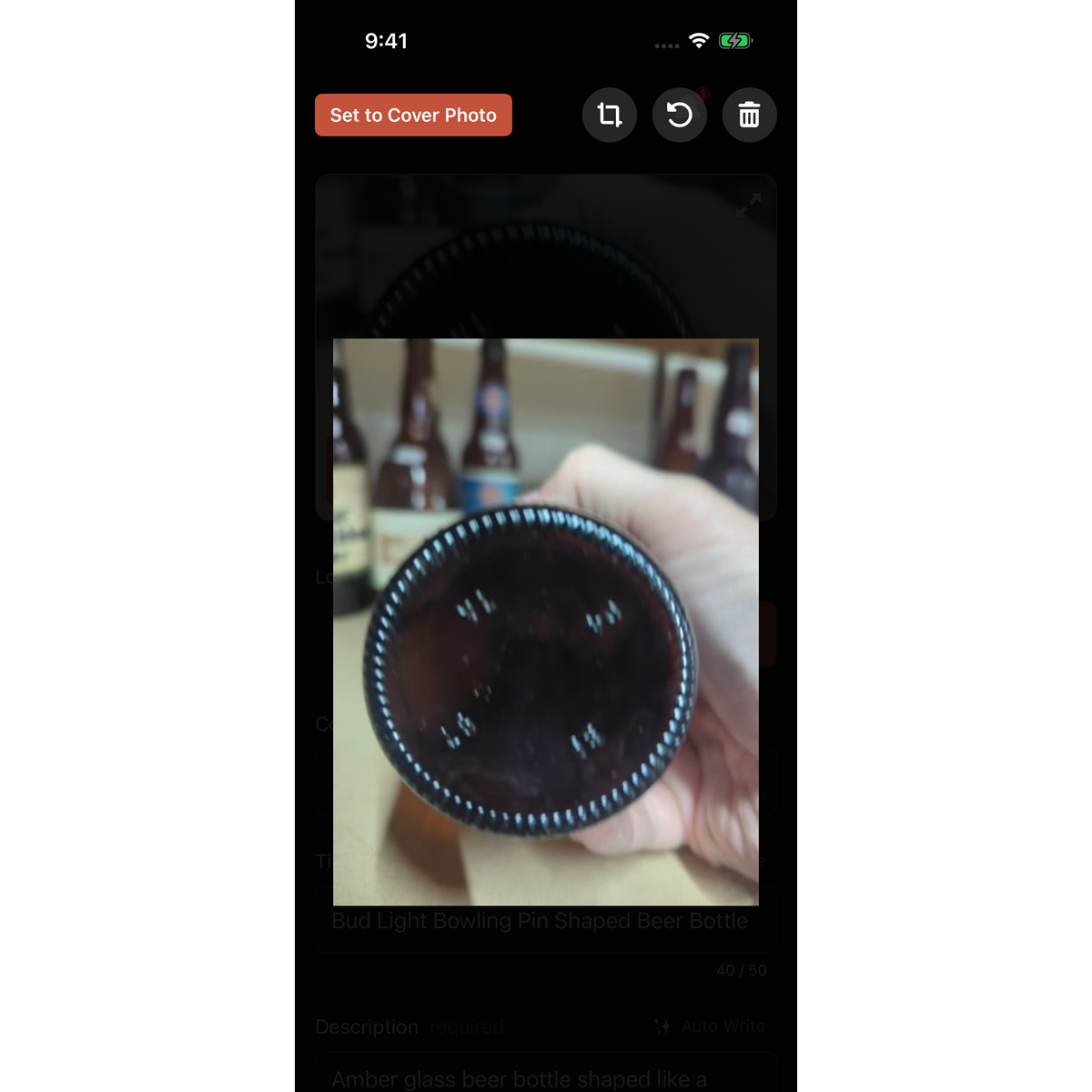
- The photo opens full screen with a bar across the top. Swipe left or right to move between the lot's photos. Pinch to zoom in. Tap the photo to close the viewer (on a zoomed photo, the first tap resets the zoom).
Make a photo the cover
The first photo is the Cover Photo. It is the thumbnail in your lot list, the first photo LotJitsu reads when it writes, and the first image in your export.
- In the viewer, swipe to the photo you want.
- Tap Set to Cover Photo. The photo moves to the front and the button changes to a Cover Photo label.
New photos join the end.
Reorder photos
- Open the lot to edit it.
- Touch and hold a thumbnail under the large photo until it lifts.
- Drag it left or right to its new place, then let go.
The first photo is always the Cover Photo, so dragging a photo to the front makes it the cover. Reordering works without a connection too; the new order is sent when you reconnect.
Reordering is available when you edit a lot, not in the New Lot sheet. In the sheet, use Set to Cover Photo to choose the cover.
Crop a photo
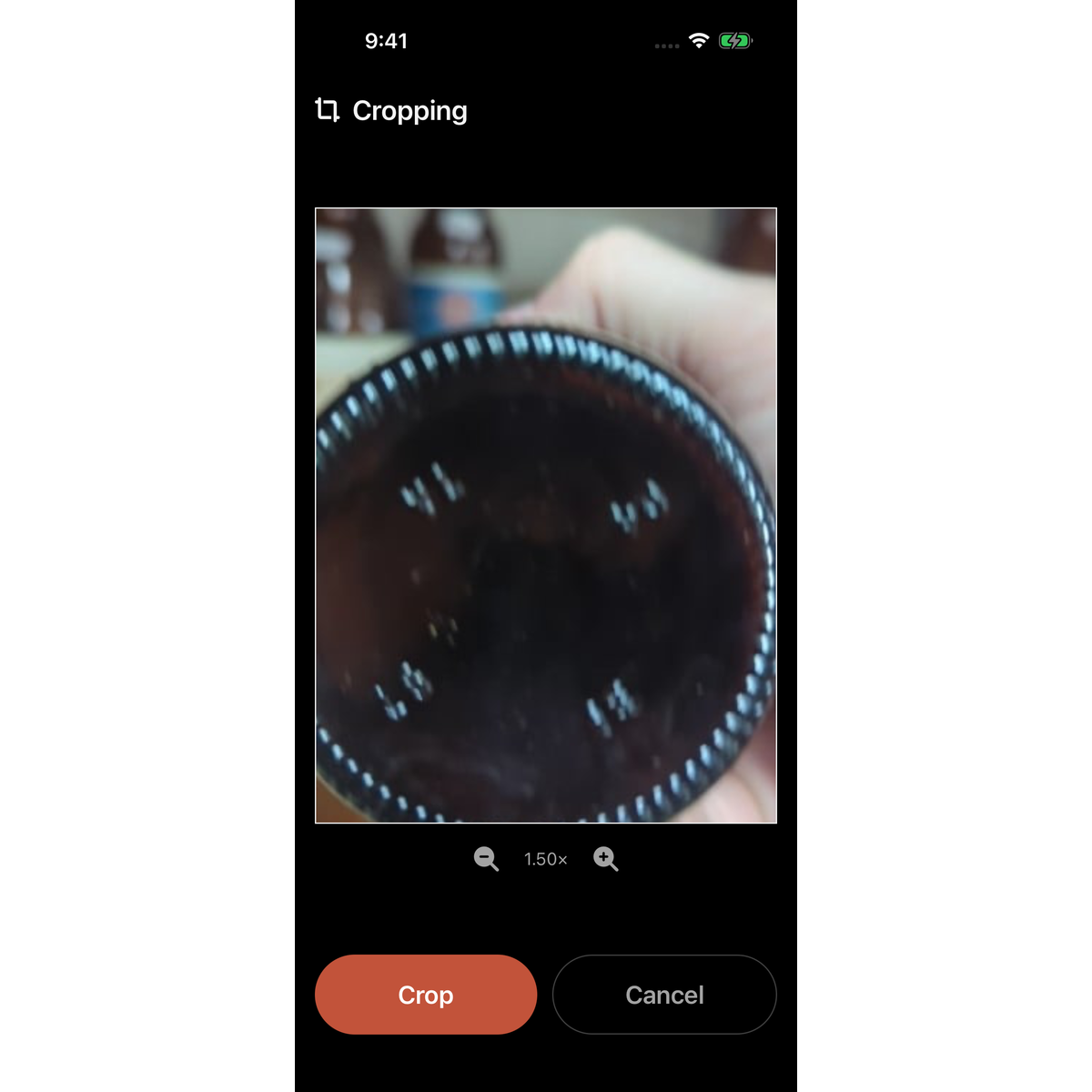
- In the viewer, tap the crop button in the top bar. The screen reads Cropping.
- Pinch to zoom and drag the photo to frame it, or use the minus and plus buttons under the frame.
- Tap Crop. It stays greyed out until you change the framing. Cancel goes back without changing anything.
To change a crop later, tap the crop button again. The screen opens on the whole original photo with your last crop already framed, so you can zoom out to bring back what you cut off, all the way to the whole photo.
Rotate a photo
In the viewer, tap the rotate button. Each tap turns the photo a quarter turn to the left. Tap again for the next quarter turn. On a cropped photo, the crop turns with it.
Undo every crop and rotation
The Reset to original button (a clock with a curved arrow) appears in the top bar only on a photo you have cropped or rotated.
- In the viewer, tap Reset to original.
- On Reset this photo? ("Your crop and rotation will be undone."), tap Reset. Cancel keeps the photo as it is.
The photo goes back to how it was before your first crop or rotation, and Photo reset shows in the viewer.
Delete a photo
- In the viewer, tap the trash button.
- On Are you sure? ("This removes the photo from this lot. This can't be undone."), tap Delete Photo. Cancel keeps it.
If you delete the cover, the next photo becomes the cover.
Good to know
- Crop and rotate change the photo LotJitsu uses everywhere, including your export package. LotJitsu also keeps the photo as it was before your first crop or rotation, which is what a new crop starts from and what Reset to original brings back. Every photo is stored in a 4:3 (or 3:4) shape, and a crop keeps that shape.
- A photo cropped or rotated in an earlier version of LotJitsu keeps that earlier crop as its original: a new crop can't bring back what it cut off.
- On a lot you are editing, crop, rotate and Reset to original need a connection, and their buttons are dimmed while you are offline. In the New Lot sheet they work without a connection: the photo uploads as you took it, and your crop and rotation follow, so it keeps its original too.
- To remove a photo you just took and have not added to the lot yet, tap the × on its thumbnail in the camera.
- No control moves a photo to another lot. Delete it from the wrong lot and add it to the right one.
- A lot can have up to 150 photos, and your plan may allow fewer. A count such as "3 of 5" shows how many you have used. At your plan's limit, tapping + does not open the camera. Instead you see Limit Reached: "You have used N of N photos. Manage your account at lotjitsu.com." If you pick more photos than fit, LotJitsu adds the ones that fit and shows the same message. Swipe it down or tap outside it to close it and go back to the lot. Plans are changed at lotjitsu.com, not in the app.

