

Using a computer? See Export a catalog on your computer.
Exporting builds an export package: one ZIP file with a spreadsheet and every photo, laid out for the catalog's platform. You then upload that file to your platform yourself, usually from a computer.
Before you start
- You need a connection. Export is dimmed while your phone is offline.
- The catalog needs at least one lot.
- You need to own the catalog or be a collaborator on its folder. Someone invited to a single catalog can work on its lots but cannot export it: the Export button is not shown, and Export on the Transfer sheet is greyed out with "This catalog was shared with you on its own, so you can't export it." See Owners and collaborators: who can do what.
- Exporting may count lots toward your monthly allowance. See Export a catalog again.
Steps
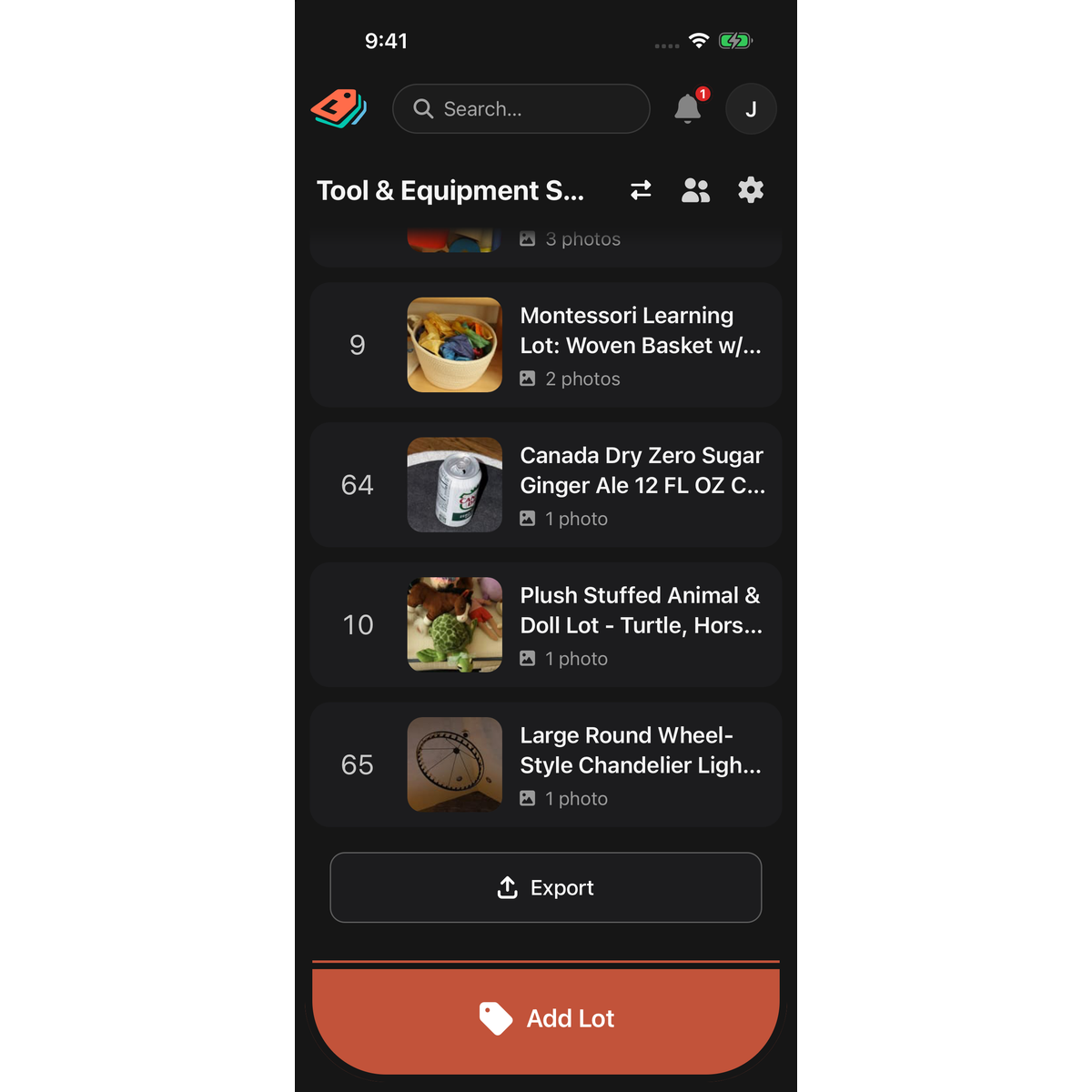
- Open the catalog, scroll to the end of the lot list and tap Export. You can also tap the Transfer icon (the left and right arrows) in the catalog's header or on its row in Catalogs, then tap Export.
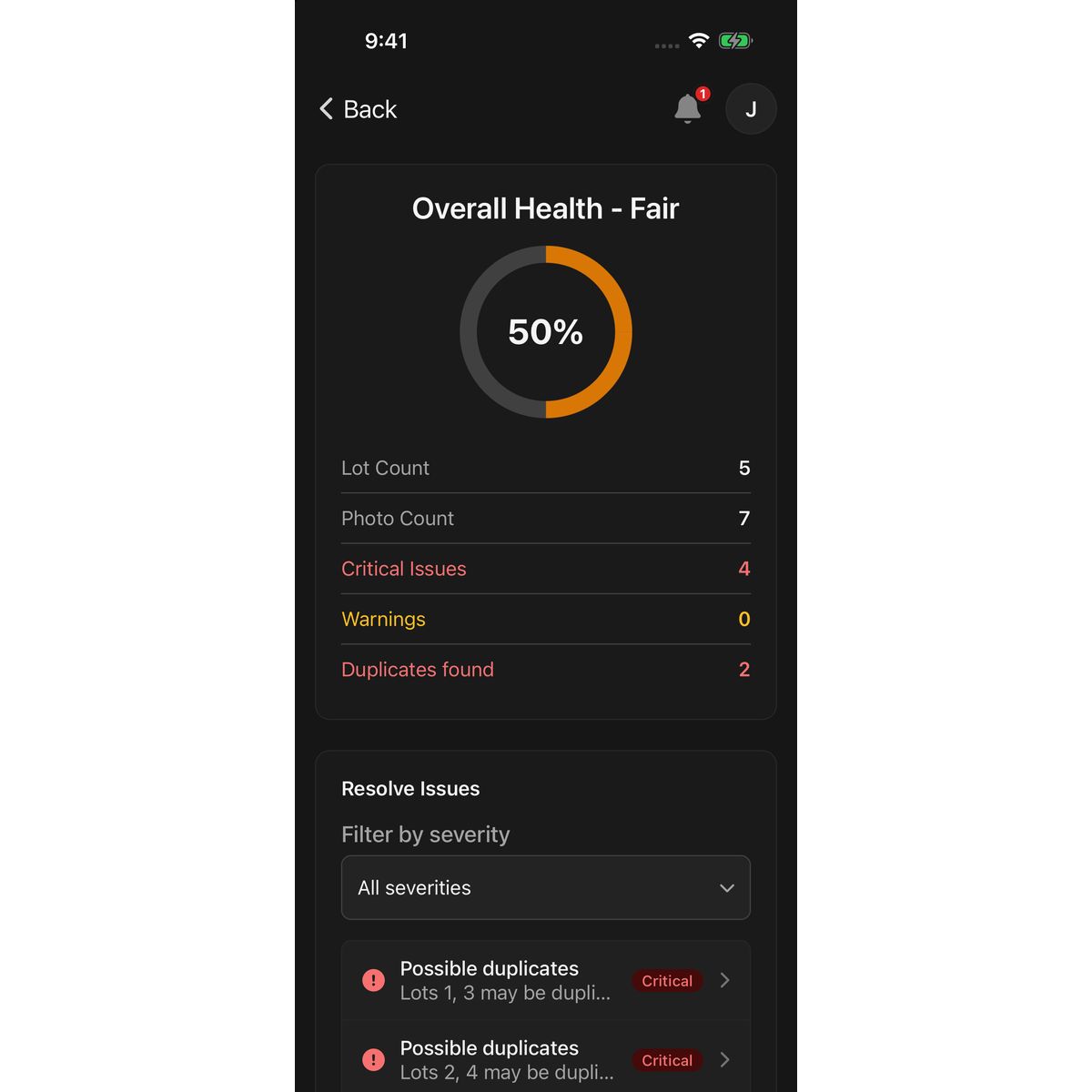
- If the catalog has no critical issues, no warnings and no possible duplicates, LotJitsu skips Overall Health and opens Final Confirmation straight away. Go to step 3. Otherwise, check Overall Health: LotJitsu checks every lot against your platform's rules. Fix anything under Resolve Issues, then tap Continue. Continue stays locked while any critical issue remains; warnings don't stop the export. Tap the info icon beside Critical Issues or Warnings for a short explanation of each. See Fix issues before you export.
- On Final Confirmation, check Total lots and Total photos, and read the Monthly limit card. It says whether this export is free or how many lots it counts.
- Tick I agree to the export terms. Tap export terms to read them first.
- Tap Export Package (it reads Export if you have exported this catalog before). A sheet shows Building Your Package. You can leave the screen; the build keeps going.
- When you see Export Complete, tap Download ZIP.
- iPhone: the share sheet opens. Choose Save to Files, or send the file to another app.
- Android: choose Save to Device and pick a folder, or Share… to send it to another app.
See Save an export package on iPhone or Android for more on where the file goes.
Good to know
- If the export needs more lots than your plan has left this month, the button is replaced by a message telling you to manage your account at lotjitsu.com or wait for your monthly reset. Manage Account opens lotjitsu.com.
- If you have already used all of this month's lots, you also see Limit Reached, for example "You have used 25 of 25 lots. Manage your account at lotjitsu.com." The export does not run. Swipe the message down or tap outside it to close it.
- If LotJitsu can't read a photo while it builds the package, it leaves that photo out and Export Complete says so, for example "2 photos couldn't be included in this package." The lot's other photos are numbered with no gap. Check the lot's photos, then export again if you need them all.
- If a build fails, you see Export Failed and "The last export didn't finish. You can try again." Tap Try Again. A failed build never counts toward your allowance.
- If you close the Export Complete sheet before downloading, get the file from History in your account panel. See Find and download a previous export on your phone.
- Your platform's import often runs best on a computer. The simplest way to get the file there is to log in to LotJitsu on the computer and download it from History. See Upload your package to your auction platform.
- What you get: What's in your export package.

