

Fixes for the camera not opening, photos that will not add, and photos that do not upload in the LotJitsu app.
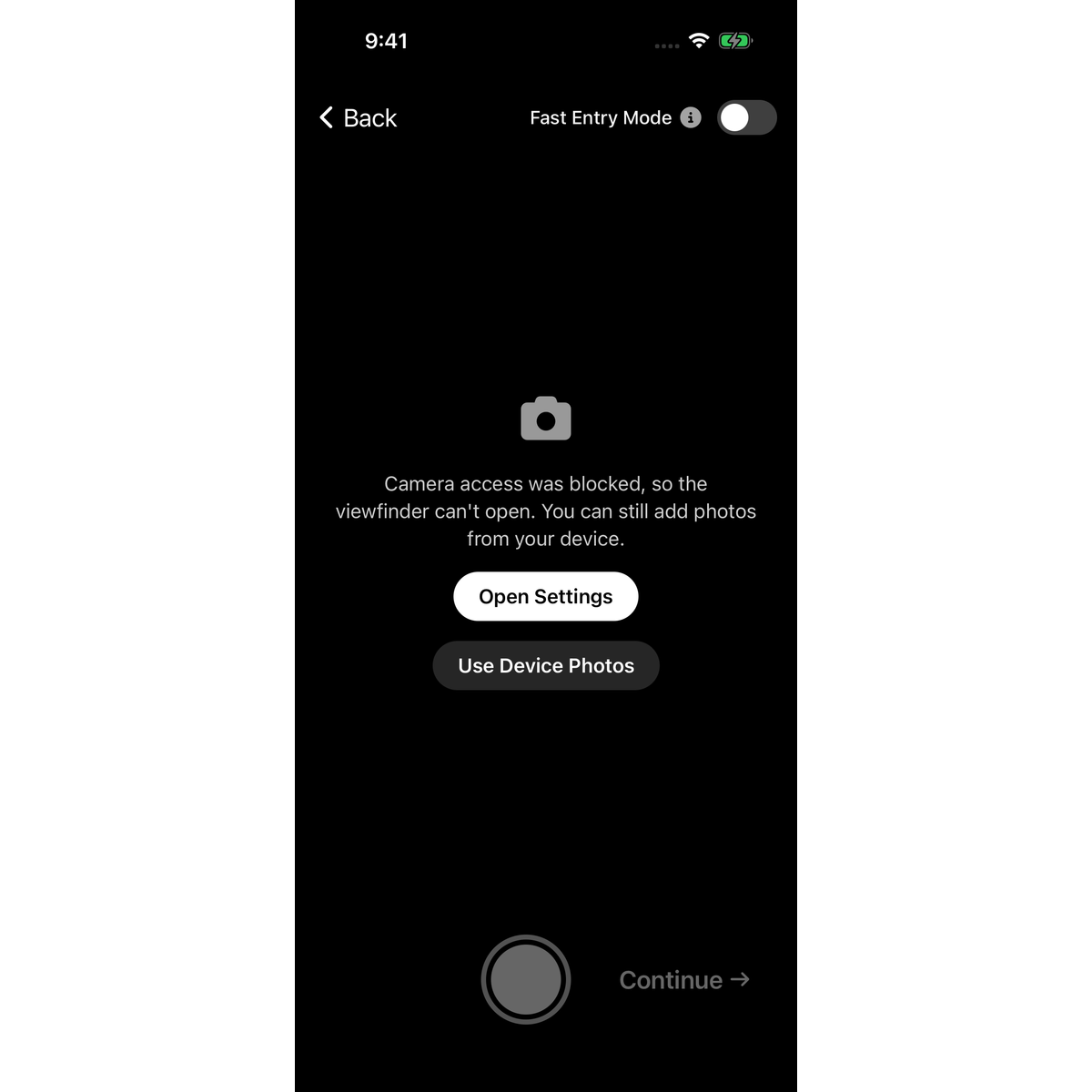
The camera is blocked
You see Camera access was blocked, so the viewfinder can't open. You can still add photos from your device.
LotJitsu does not have permission to use your camera.
- Tap Open Settings. Your phone's settings for LotJitsu open.
- Turn on Camera.
- Go back to LotJitsu and open the camera again.
Need to keep working right now? Tap Use Device Photos to add photos you already took. Step-by-step help: Allow camera and photo access on iPhone or Allow camera and photo access on Android.
The camera did not start
You see The camera didn't start. with Try Again and Use Device Photos.
- Tap Try Again.
- If that does not work, close LotJitsu fully (swipe it away from your recent apps) and open it again.
- Check that no other app, such as a video call, is using the camera.
- Restart your phone if it still will not start.
While it starts you see Starting camera….
Photos from your phone will not add
- If the photo picker does not open, you see Could not open your photo library: followed by a reason. Close LotJitsu fully, open it again and try once more.
- If you see Limit Reached, for example "You have used 5 of 5 photos. Manage your account at lotjitsu.com.", the lot is full for your plan. Any photos that fit were added. Swipe the message down to close it. To add more, remove a photo first, or manage your account at lotjitsu.com.
- If you see A lot can have up to 150 photos; followed by how many were skipped, the lot has reached the most photos any lot can hold.
Photos taken without a connection
- When you add a lot with no connection, the app says Saved offline - uploads and AI run when you're back online. Your photos are kept on your phone and sent when you reconnect. Keep LotJitsu open for a while once you are back online.
- If you see This lot has not been opened on this device yet, so it cannot take photos offline. Reconnect once to load it, then it works offline from then on., connect, open the lot once, and it will then work offline.
See Work without a connection.
A photo did not upload
You see Upload failed or Upload failed (network error). Check your connection, then add the photo again.
LotJitsu cannot make out the photo
Unable to recognize photo means LotJitsu could not identify the item. Take the photo again: closer, in better light, with the item filling the frame. See Take better photos for better listings.
Your profile picture will not save
- Image must be under 5MB: choose a smaller picture.
- Please upload a JPEG, PNG, WebP, or GIF image: choose a picture in one of those formats.
Still stuck?
Note the exact message and your phone model, and see Contact support: Ask Support and Support Chat.

