

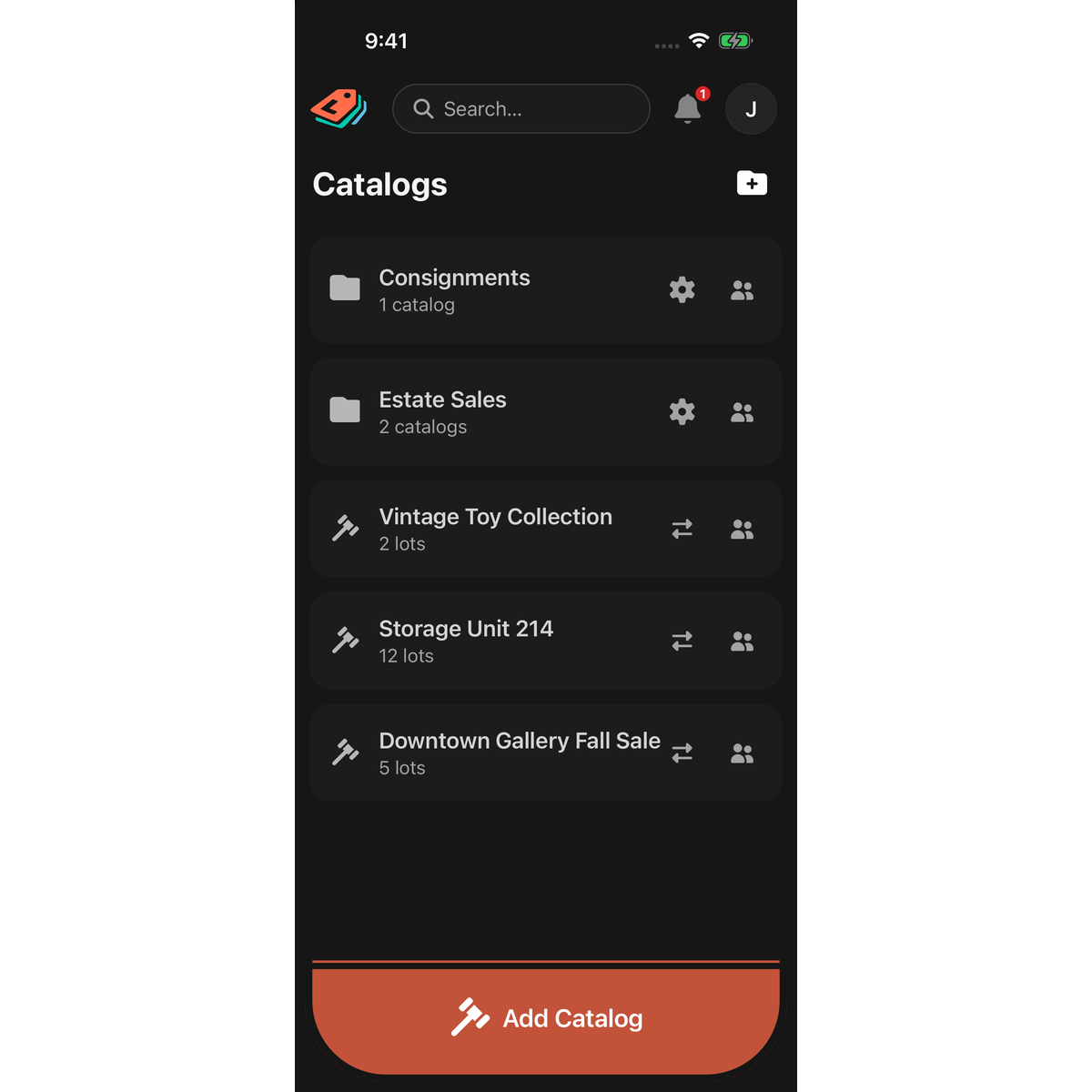
A quick map of the LotJitsu app on your phone: the Catalogs page you land on, the header, the button at the bottom and the account panel.
Using a computer? See Find your way around LotJitsu on your computer.
The Catalogs page
The app opens on Catalogs every time you log in. (Once, right after you verify the email address of a new account, or sign up with Apple or Google, the heading reads Welcome to LotJitsu!)
- Your folders and the catalogs that are not in a folder are listed together. Tap a folder to open it in place and see its catalogs.
- Shared with you lists folders and catalogs other people have shared with you. Invitations you haven't answered appear here too.
- The New Folder icon (a folder with a plus) sits beside the heading once your list has something in it.
- Pull down on the list to refresh it.
The header
On Catalogs and on a catalog page, the header holds:
- the LotJitsu mark, which takes you back to the top of Catalogs;
- Search…, which opens a full-screen search for folders, catalogs and lots. See Search in the app;
- the bell, which opens Alerts. A red number shows unread alerts;
- your photo or initial, which opens the account panel.
Every other page shows Back on the left instead. You can also swipe in from the left edge on iPhone, or use the Android back button.
The button at the bottom
A full-width button sits at the bottom of the screen:
- On Catalogs it reads Add Catalog.
- On a catalog page it reads Add Lot.
It hides while the keyboard is open and on account pages.
Inside a catalog
A catalog page lists its lots. The icons at the top open Transfer (Export and Import), Collaborators, and Catalog settings. When a catalog has lots, an Export button sits under the last lot.
The account panel
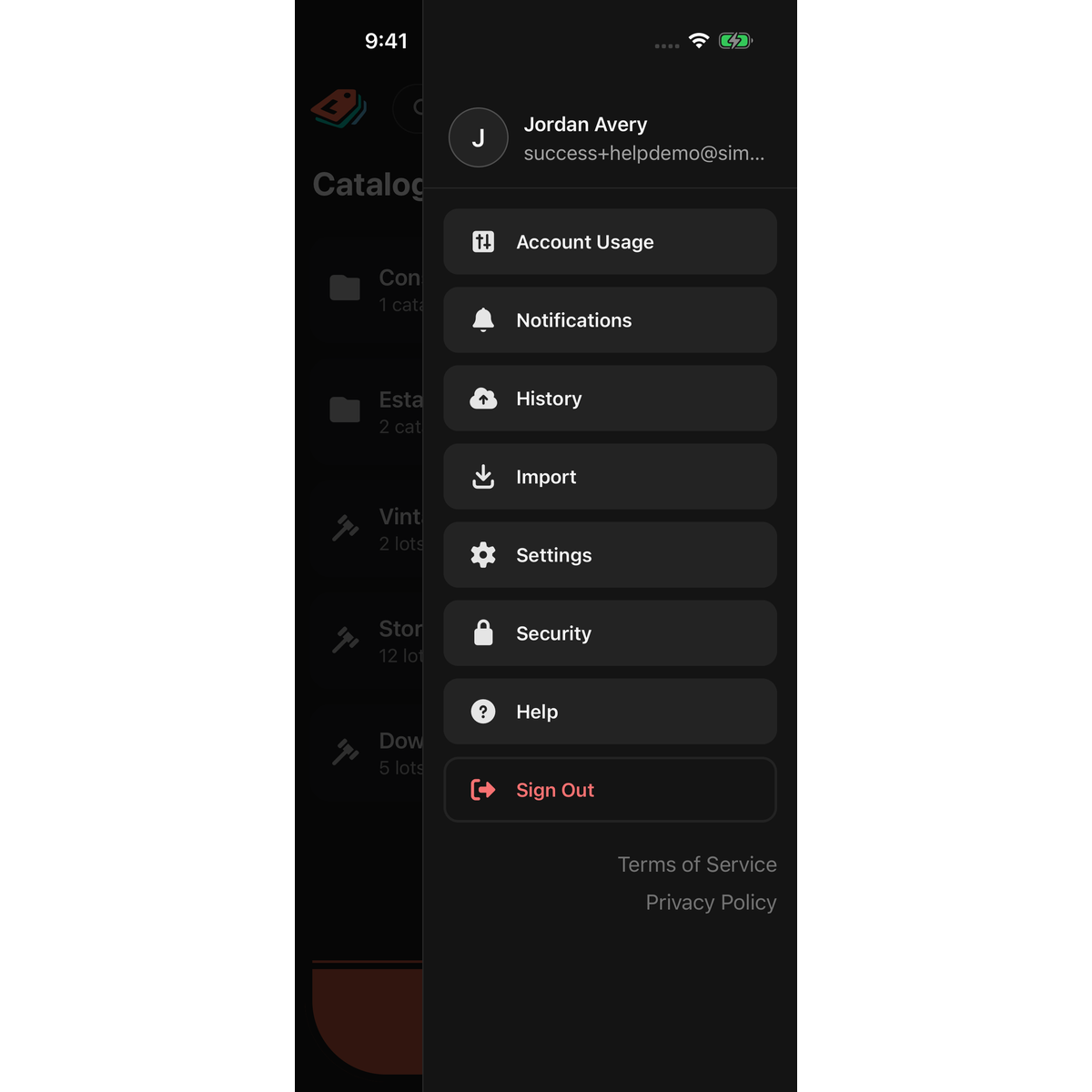
Tap your photo or initial at the top right. The panel slides in from the right.
- Tap your name and email at the top to open Profile.
- Account Usage, Notifications, History, Import, Settings, Security and Help each open their page.
- Sign Out is the red row at the bottom. Links to the Terms of Service and Privacy Policy sit under it.
Tap outside the panel or swipe it to the right to close it.
The Quick Start Guide
A new account sees a Quick Start Guide card with three steps: Account sign up, Configure your first catalog and Add your first lot. The button you need next glows green. Tap Skip to hide the guide for good. It also disappears once your first catalog has a lot.
Good to know
- Once you are logged in, the app opens to Catalogs even with no connection, and you can keep working. See Work without a connection.

