

This walk-through takes you from an empty account to a downloaded Export package in the LotJitsu app. Each part links to a full article if you want more detail.
Using a computer? See Your first catalog on your computer.
Before you start
- Log in to the app. See Log in to the LotJitsu app.
- Have something to photograph and a connection for the export step.
1. Create the catalog
- On Catalogs, tap Add Catalog at the bottom of the screen.
- Type a Catalog Name, choose your platform under Select Platform, and tap Continue.
- Under Include Fields, tick the Fields each lot should collect. Fields marked Auto are written by LotJitsu from your photos.
- Choose an Automated Writing Style if you want one.
- Tap the button at the bottom. It names your choice, for example Collect 4 Fields (Auto writes 2).
- On Catalog Created, tap Start Cataloging. Your new catalog opens.
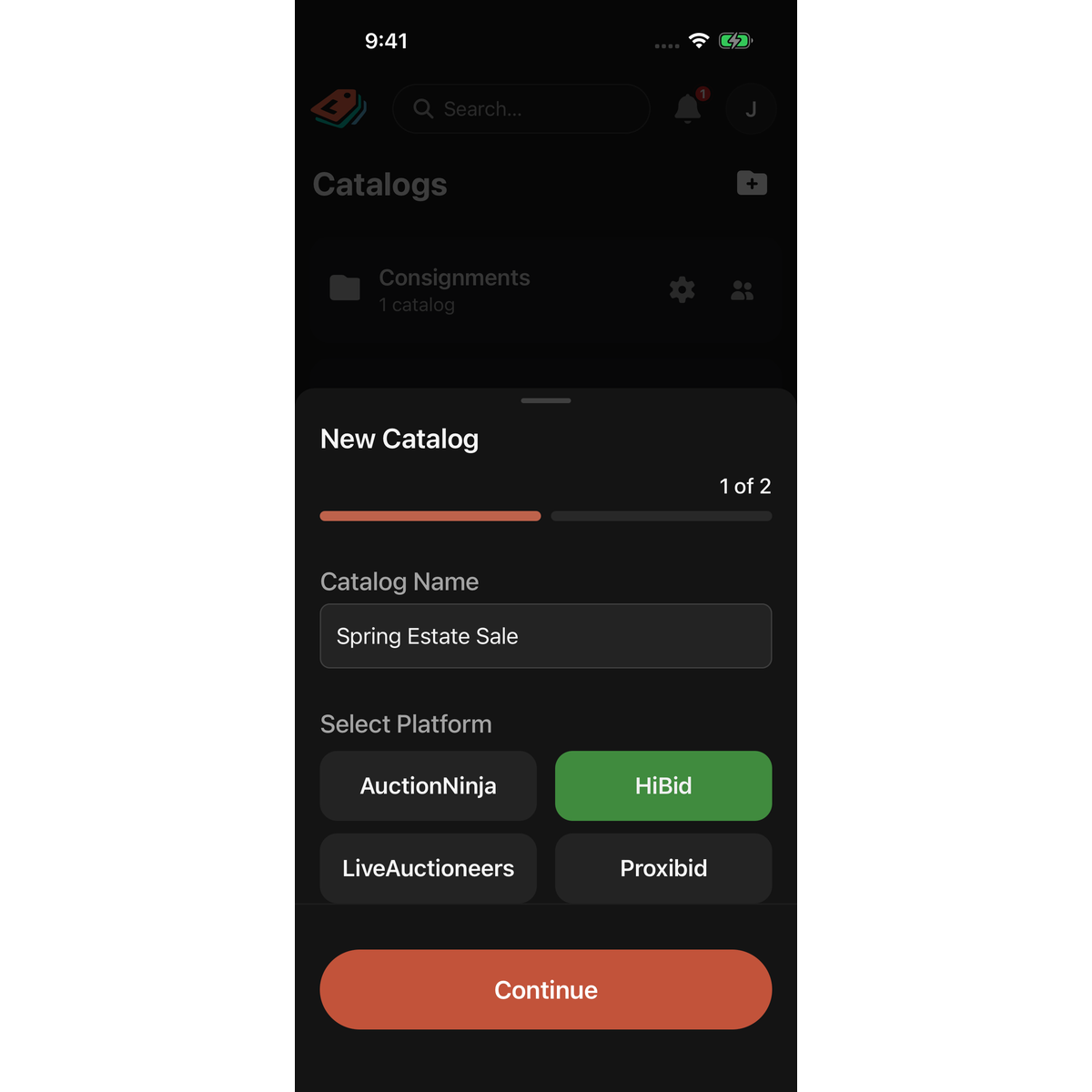
More: Create a catalog on your phone.
2. Add your first lot
- Tap Add Lot at the bottom of the catalog.
- The first time, LotJitsu asks how you want to work. Tap Go Fast - Review As-you-go under Standard to check each lot as you go, or Go Faster - Review Later! under Fast Entry Mode to capture quickly and review later.
- The camera opens. Take one or more photos of the item, then tap Continue.
- Check the Lot Number and the Fields as LotJitsu fills them in, then tap Confirm Details.
- On Your first lot is in!, tap Add Another for the next lot, or Finish to return to the catalog.
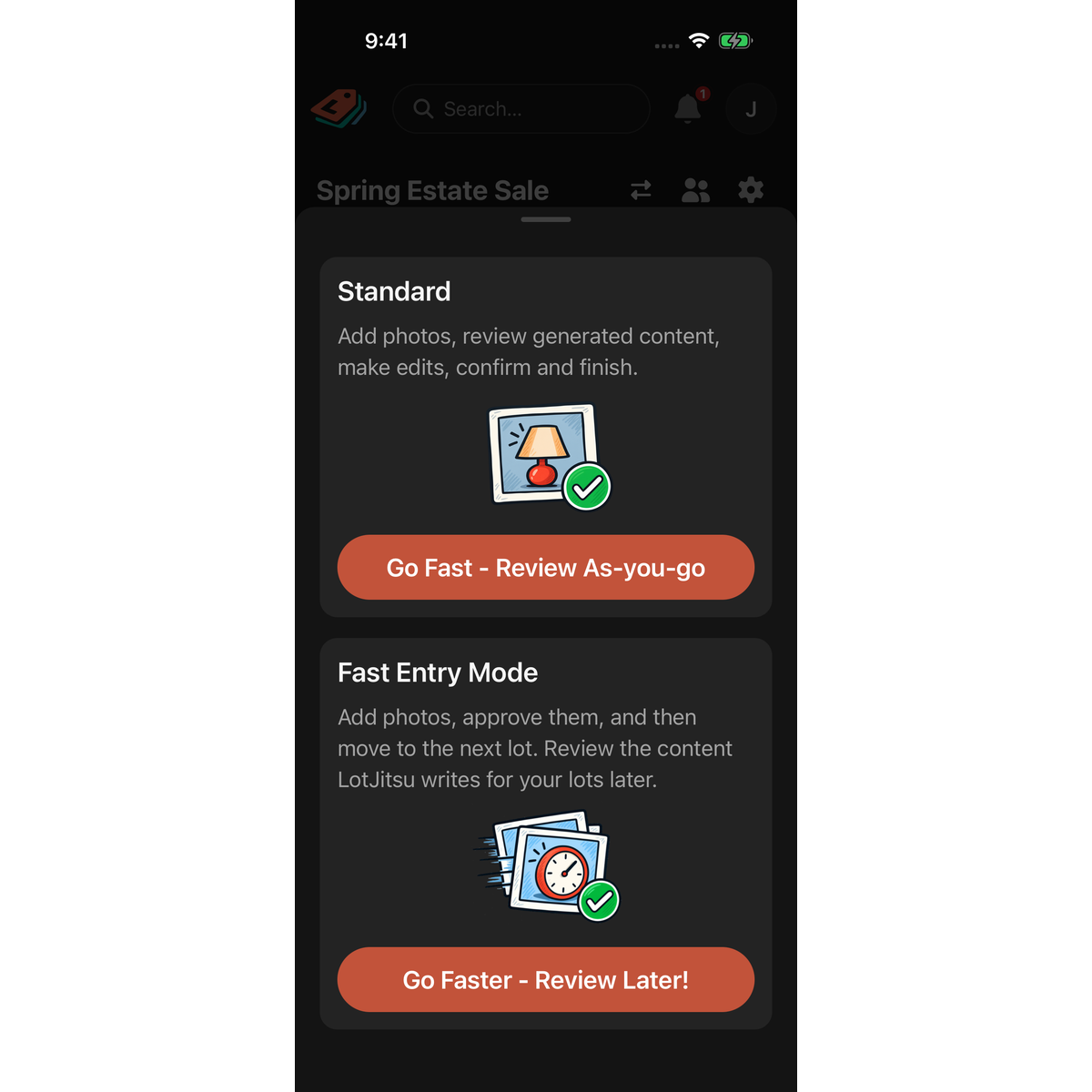
More: Add a lot on your phone and Standard or Fast Entry Mode on your phone.
3. Review what LotJitsu wrote
Tap a lot to open it. Read the text and correct anything the photos could not show, such as working order or exact age. Tap Save when you are done. See Review the text LotJitsu writes.
4. Export the catalog
- Scroll to the end of the lot list and tap Export.
- Overall Health lists anything to fix. Fix any critical issue, then tap Continue.
- On Final Confirmation, tick the box to agree to the export terms and tap Export.
- When Export Complete appears, tap Download ZIP and save the package.
More: Export a catalog on your phone and Save an export package on iPhone or Android.
5. Upload to your platform
Upload the .zip to your platform yourself. LotJitsu does not connect to your platform. See Upload your package to your auction platform.
Good to know
- The Quick Start Guide on Catalogs follows these same steps, and the button you need next glows green.
- You can capture lots without a connection. They are sent when you reconnect.

