

Alerts are the messages LotJitsu leaves for you under the bell. Notifications is the page where you choose how LotJitsu reaches you, including push notifications on this phone.
Using a computer? See Alerts and notifications on your computer.
Read your alerts
- Tap the bell at the top of the screen. A red number shows how many alerts are unread.
- The Alerts page opens. Pull down to refresh it.
- Tap an alert to mark it read.
- Tap the ✕ on an alert to dismiss it.
- Tap Clear All Alerts at the bottom to delete every alert. It needs a connection.
An invitation to a folder or catalog arrives as an alert with its own Accept and Decline buttons. See Accept or decline an invitation on your phone.
Turn push notifications on or off
- Tap your photo or initial at the top right, then Notifications.
- Turn on Push: "Get notifications on this device, even when the app isn't open."
- The first time, your phone asks whether LotJitsu may send notifications. Tap Allow.
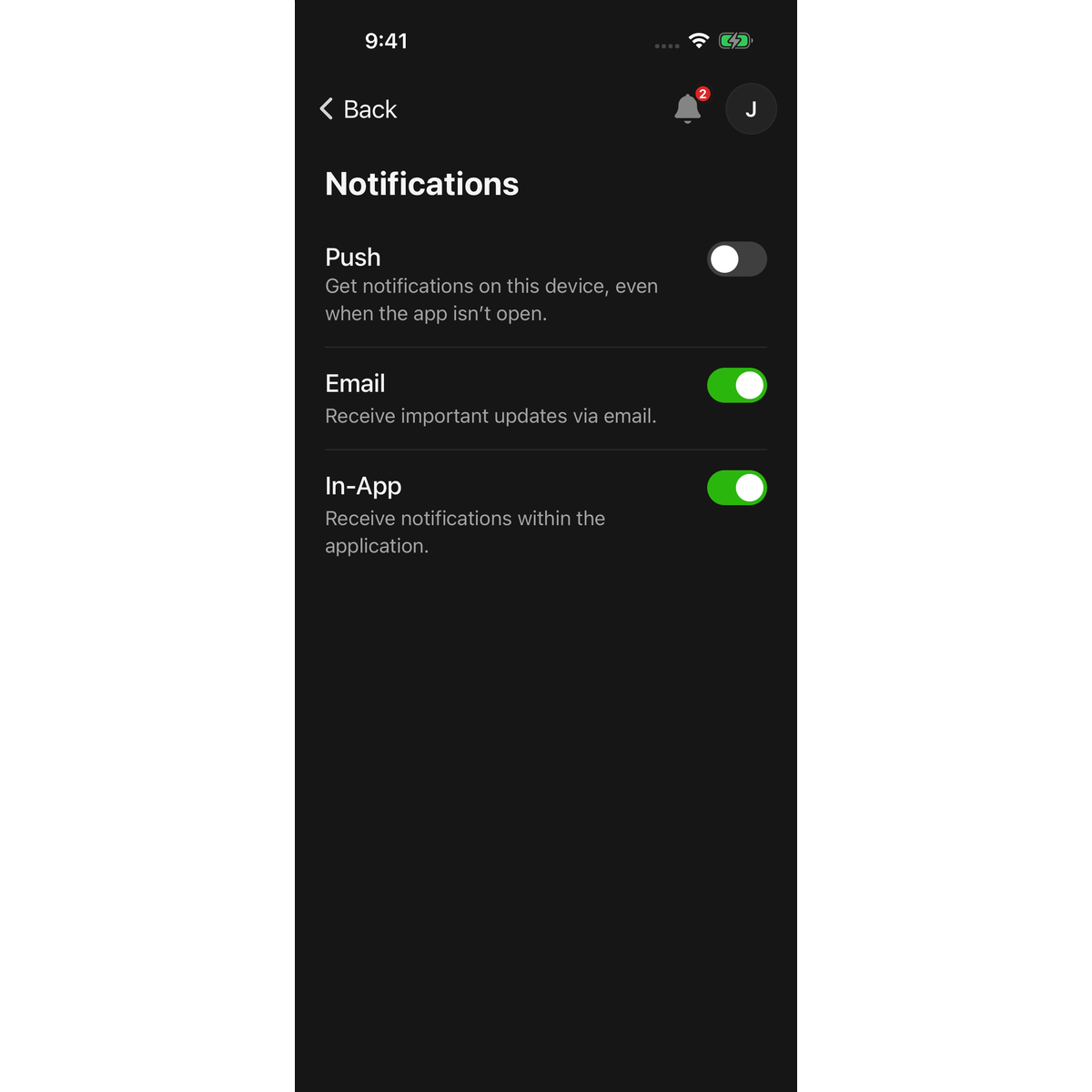
Push is set for each phone. Signing out turns it off on that phone.
If notifications for LotJitsu are blocked in your phone's settings, the Push switch can't be turned on and the page says so. Tap Open Settings, allow notifications for LotJitsu, and come back.
Whether Push is on or off, the Alerts list in the app always shows your alerts.
Choose your other channels
On the same page:
- Email: "Receive important updates via email."
- In-App: "Receive notifications within the application."
Each switch saves as soon as you change it. If it can't be saved, it springs back with "Failed to update preference".
Good to know
- Account security emails are always sent, whatever these switches say.
- Alerts and the bell count are the same on your phone and your computer.
- The app warns you about your monthly export limit only here: Close to your monthly export limit when you have used 80% of it, and Monthly export limit reached when you have used it all.

