

Using the LotJitsu app? See Search in the app.
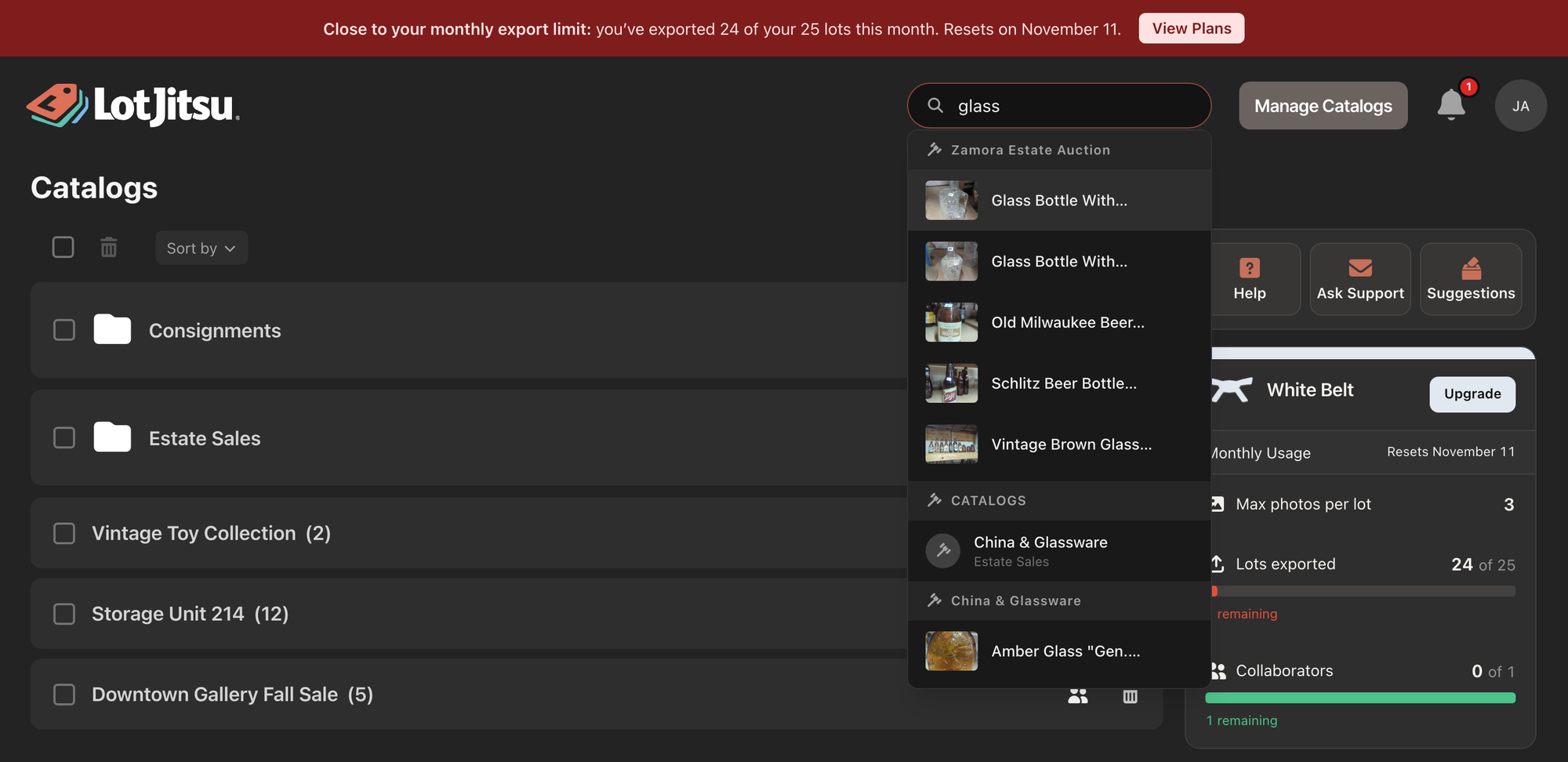
The Search... field in the header finds folders, catalogs and lots by name and opens them directly. It searches your own work and anything shared with you.
Steps
- Click Search... in the header.
- Type a word or part of a word. Results appear as you type; Searching... shows while they load.
- Click a result, or use the Up and Down arrow keys to highlight one and press Enter. Pressing Enter straight away opens the top result.
What it finds
- Folders whose name contains what you typed.
- Catalogs whose name contains it.
- Lots whose title or description contains it. Lots are grouped under the name of their catalog and show their cover photo.
Matching ignores capitals but is otherwise exact: a typo will not match. A match in a name or title ranks above a match found only in a description.
How results are grouped
Up to seven results show in all, not seven of each kind. LotJitsu ranks every match together, keeps the best seven, then sorts them under headings:
- One heading for folders, FOLDERS, and one for catalogs, CATALOGS.
- One heading per catalog for lots, showing that catalog's name.
A heading appears only when at least one of its results made the best seven, and the heading holding the best match comes first. So a search can show no lots at all: either no lot's title or description contains the word, or folders and catalogs whose names match took all seven places. To find a lot, search for a word from its title rather than a word that is also in a folder or catalog name.
What a result opens
- A folder: the Catalogs page, with that folder opened and highlighted.
- A catalog: the catalog's page.
- A lot: the lot itself.
Good to know
- A lot is not found by its catalog's or folder's name. Search for the catalog instead, then open it.
- No results found means nothing you own or can see matches. Try a shorter word.
- Press Esc to close the results.
- The search field is in the header on every page except Profile.

