

Using a computer? See Find and download a previous export on your computer.
Every package you export, on your phone or your computer, is kept in History, so you can download it again without exporting again. Downloading a package you already have never counts toward your allowance.
Steps
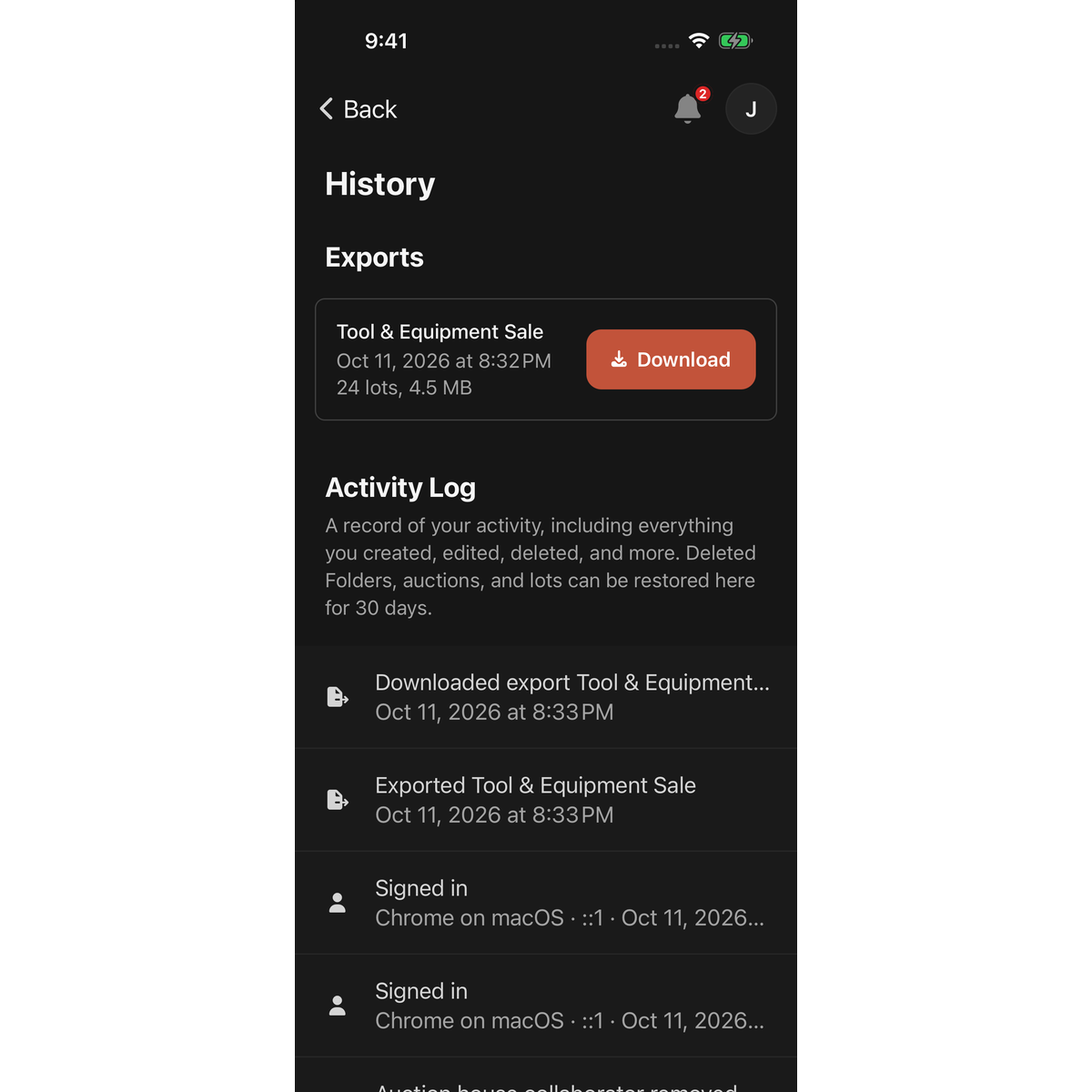
- Tap your profile picture in the header to open the account panel.
- Tap History.
- Your packages are listed under Exports, newest first. Each row shows the catalog name, the date and time it was built, and the number of lots and file size.
- Tap Download on the package you want.
- iPhone: the share sheet opens. Choose Save to Files, or send the file to another app.
- Android: choose Save to Device and pick a folder, or Share… to send it to another app.
Good to know
- You need a connection. Download is dimmed while your phone is offline.
- History shows only packages you built yourself. A collaborator's exports appear in their History, not yours.
- Packages stay listed after you rename or delete the catalog.
- Packages are saved for one year. After that the row shows Expired instead of Download, and the file cannot be recovered. Export the catalog again to get a new package.
- If you have never exported, the screen says "No history yet". If your phone is offline and has nothing saved to show, it says "You're offline. Connect to see your exports and activity." Connect and open History again.
- Builds that are still running or that failed are not listed. Open the catalog's export to see them.
- The Activity Log further down the same screen is a different list: things you did in your account, with Restore for things you deleted. See Restore something you deleted, on your phone.
- More on where the file goes: Save an export package on iPhone or Android.

