

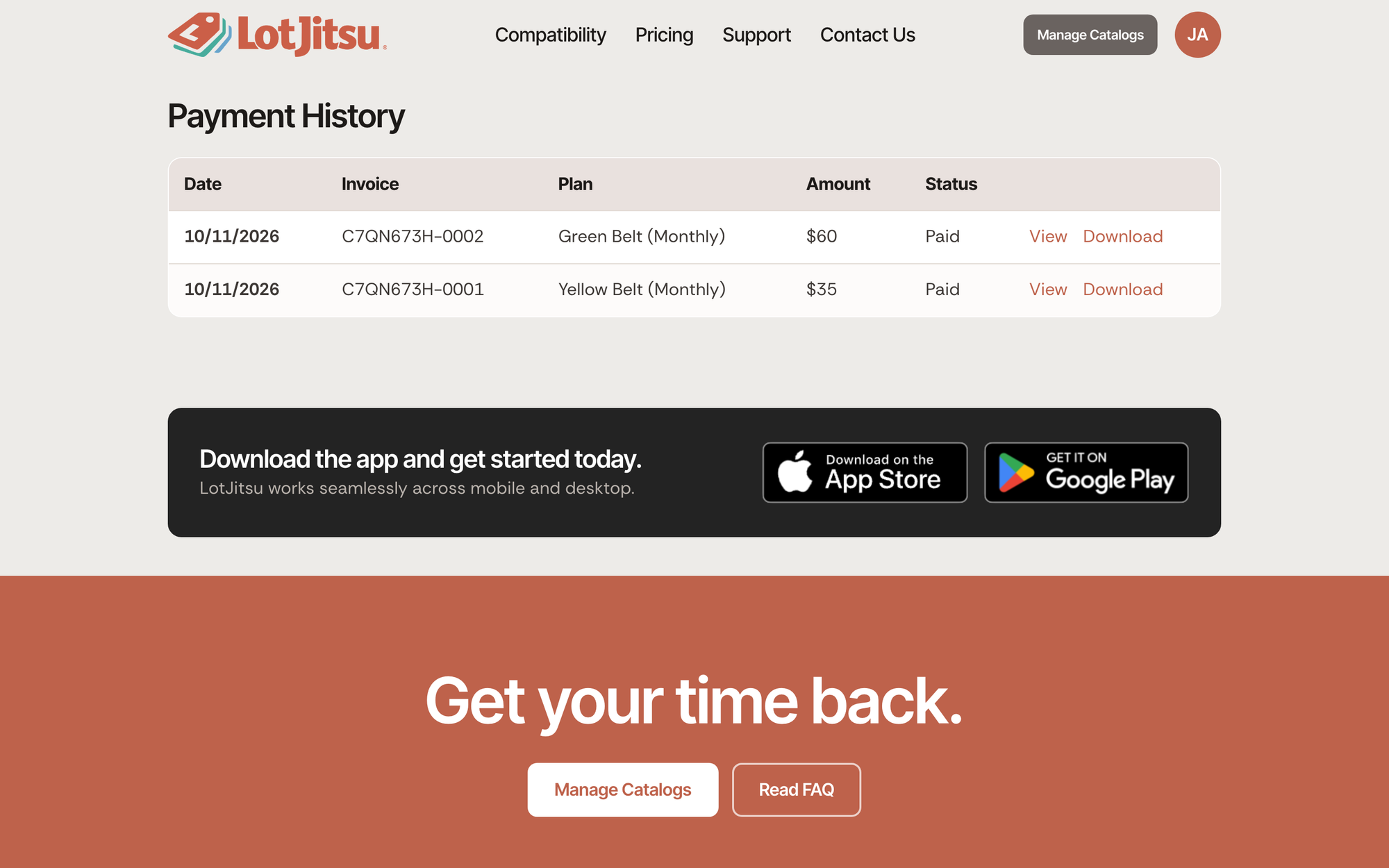
The Payment History page on lotjitsu.com lists every payment for your plan, newest first. You can view or download each invoice from this page.
Steps
- Log in on lotjitsu.com.
- Open your account menu (your picture or initials at the top right) and click Payment History.
- Find the payment. Each row shows Date, Invoice (the invoice number), Plan (for example Green Belt (Monthly)), Amount and Status.
- Click View to open the invoice, or Download to get it as a PDF. Both open in a new browser tab, on a page provided by Stripe, our payment processor.
- To see older payments, click Load More at the bottom.
What the status means
| Status | Meaning |
|---|---|
| Paid | The payment went through. |
| Open | The invoice has not been paid yet. |
| Void | The invoice was cancelled and is not owed. |
| Uncollectible | The payment could not be collected. |
| Refunded / Partially refunded | Some or all of the payment was returned to your card. |
Good to know
- Upgrades appear as their own payment, for the prorated amount charged that day.
- After a payment, you will receive confirmation that A receipt is on its way to your email.
- If you are not logged in, you will need to Log in to see your payment history. Click Log In.
- If the page cannot load your payments, it says We could not load your payment history. Wait a few minutes and reload the page.
- You cannot see payments in the LotJitsu app. On your computer, Payment History in the user menu opens this page on lotjitsu.com.
- Need an invoice changed, for example a business name added? See Contact support: Ask Support and Support Chat.

