

A quick map of LotJitsu in your web browser: the Catalogs page, the header, the side panels and your account menu.
Using the phone app? See Find your way around the LotJitsu app.
The Catalogs page
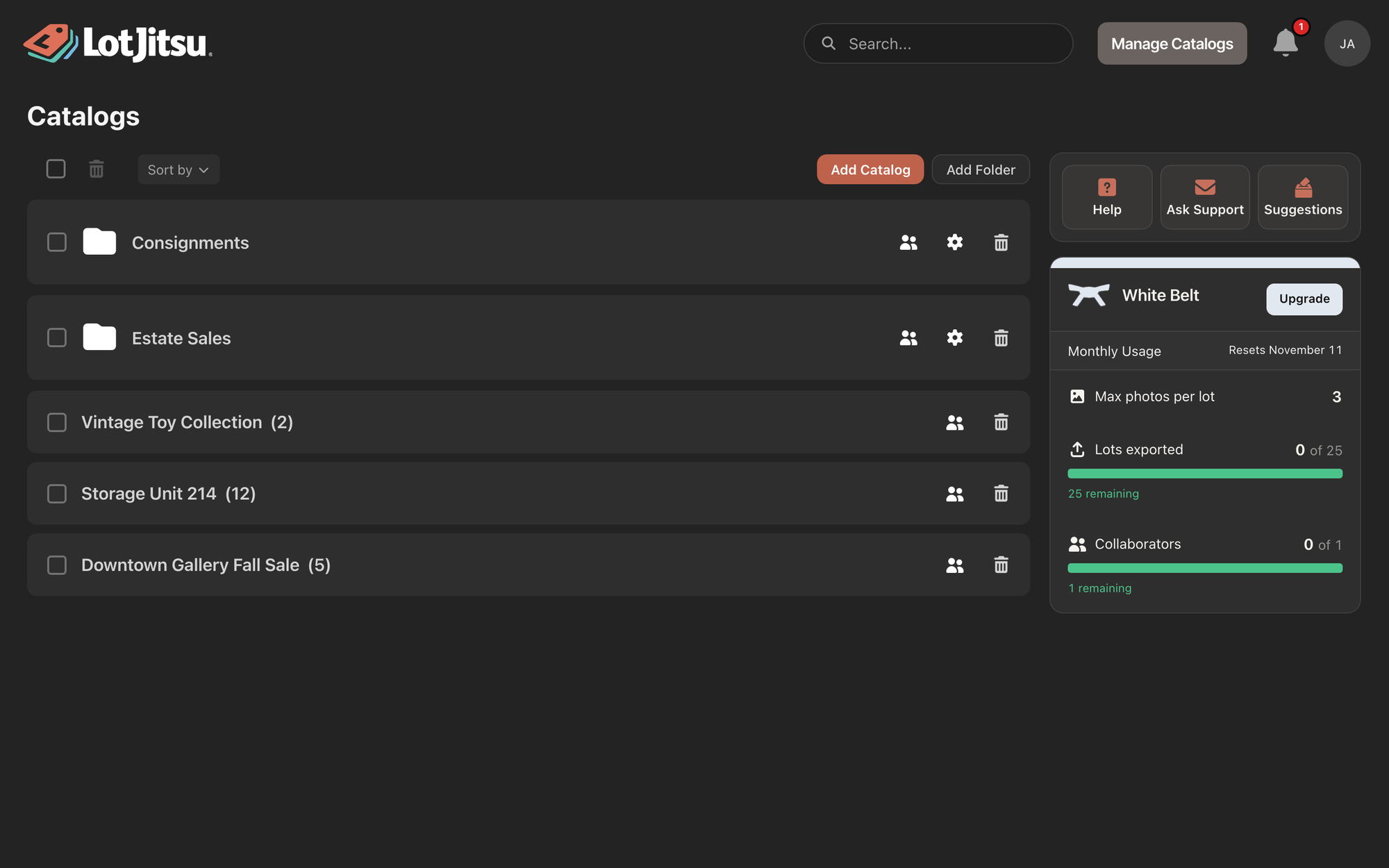
After you log in, click Manage Catalogs to reach Catalogs, your home page. (The first time after you sign up, the heading reads Welcome to LotJitsu!)
- Add Catalog and Add Folder sit at the top right of the list.
- Your folders and the catalogs not in a folder are listed together. Click a folder to open it in place.
- Shared with you lists folders and catalogs other people have shared with you.
The header
- Search... finds folders, catalogs and lots. See Search your folders, catalogs and lots on your computer.
- Manage Catalogs returns you to Catalogs from anywhere.
- The bell opens your newest Alerts. View All Alerts opens the full list.
- Your photo or initial opens your account menu.
The LotJitsu logo at the top left takes you to lotjitsu.com.
Your account menu
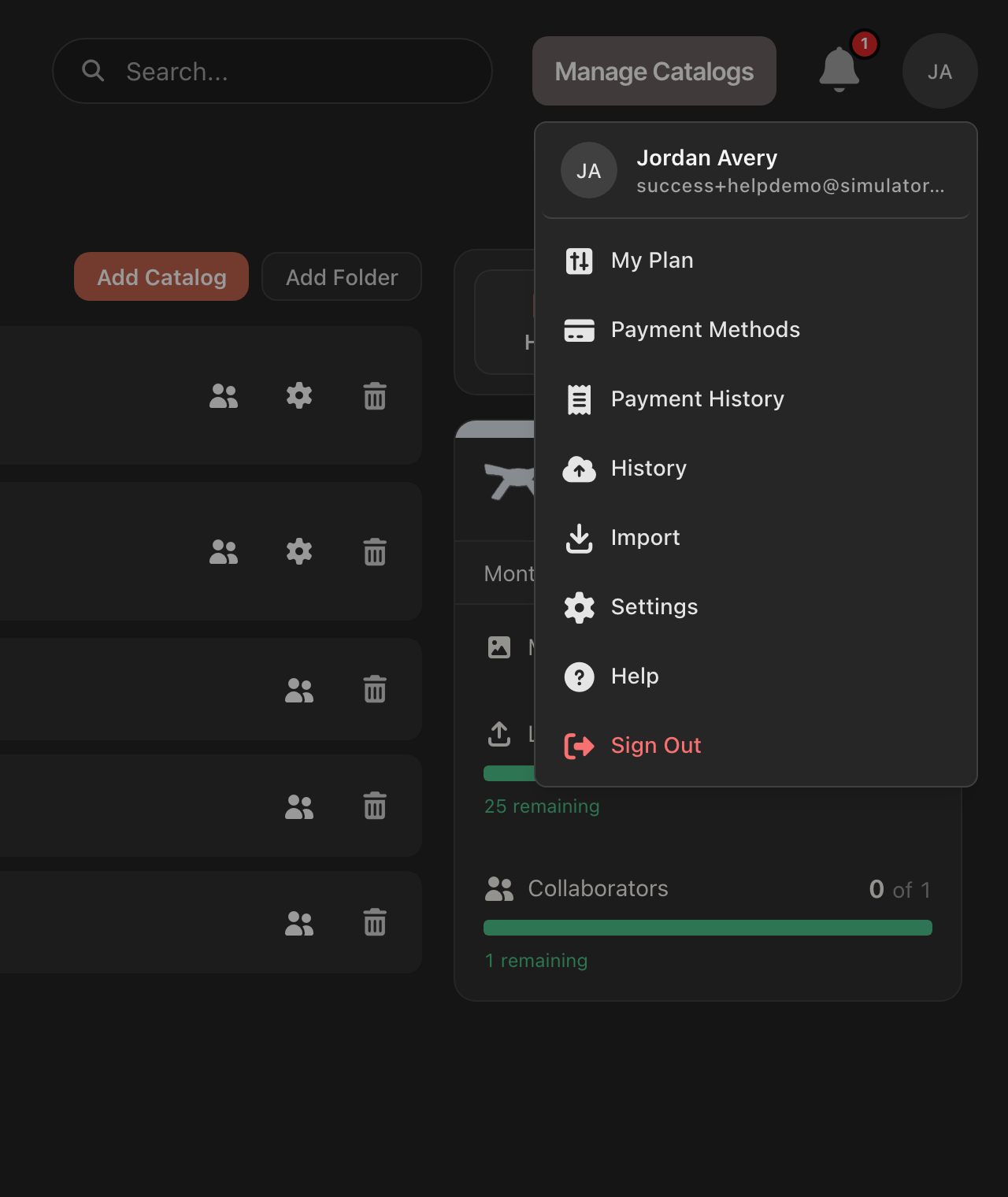
Click your photo or initial at the top right.
- Click your name and email at the top to open Profile.
- My Plan, Payment Methods and Payment History open those pages on lotjitsu.com.
- History, Import, Settings and Help open those pages in LotJitsu.
- Sign Out is the red row at the bottom.
The side panel
On Catalogs and on a catalog page, a panel on the right holds:
- a support card with Help, Ask Support and Suggestions. See Get help on your computer;
- a Monthly Usage card showing what your plan allows.
The Quick Start Guide
A new account sees a Quick Start Guide in a panel on the left of every page. It has three steps: Account sign up, Configure your first catalog and Add your first lot, plus buttons to download the phone app. The button you need next glows green: Add Catalog first, then Add First Lot in your new catalog. Click Skip to hide the guide for good. It also disappears once your first catalog has a lot.
Good to know
- The page updates itself when a collaborator, or you on another device, adds or changes something.
- LotJitsu on a computer needs a window at least 800 pixels wide.

