

Change the email address you log in with. LotJitsu asks for your password, sends a link to the new address, and changes nothing until you confirm from that link.
Before you start
- Know your current password. If you created your account with Apple or Google, it has no password yet: set one first. See Change your password on your computer.
- Make sure you can open the new address's inbox on a computer.
Request the change
- Click your photo or initial at the top right, then your name and email at the top of the menu. Profile opens.
- Replace the address in Email address with the new one.
- Click outside the field. LotJitsu checks that no other account uses the address.
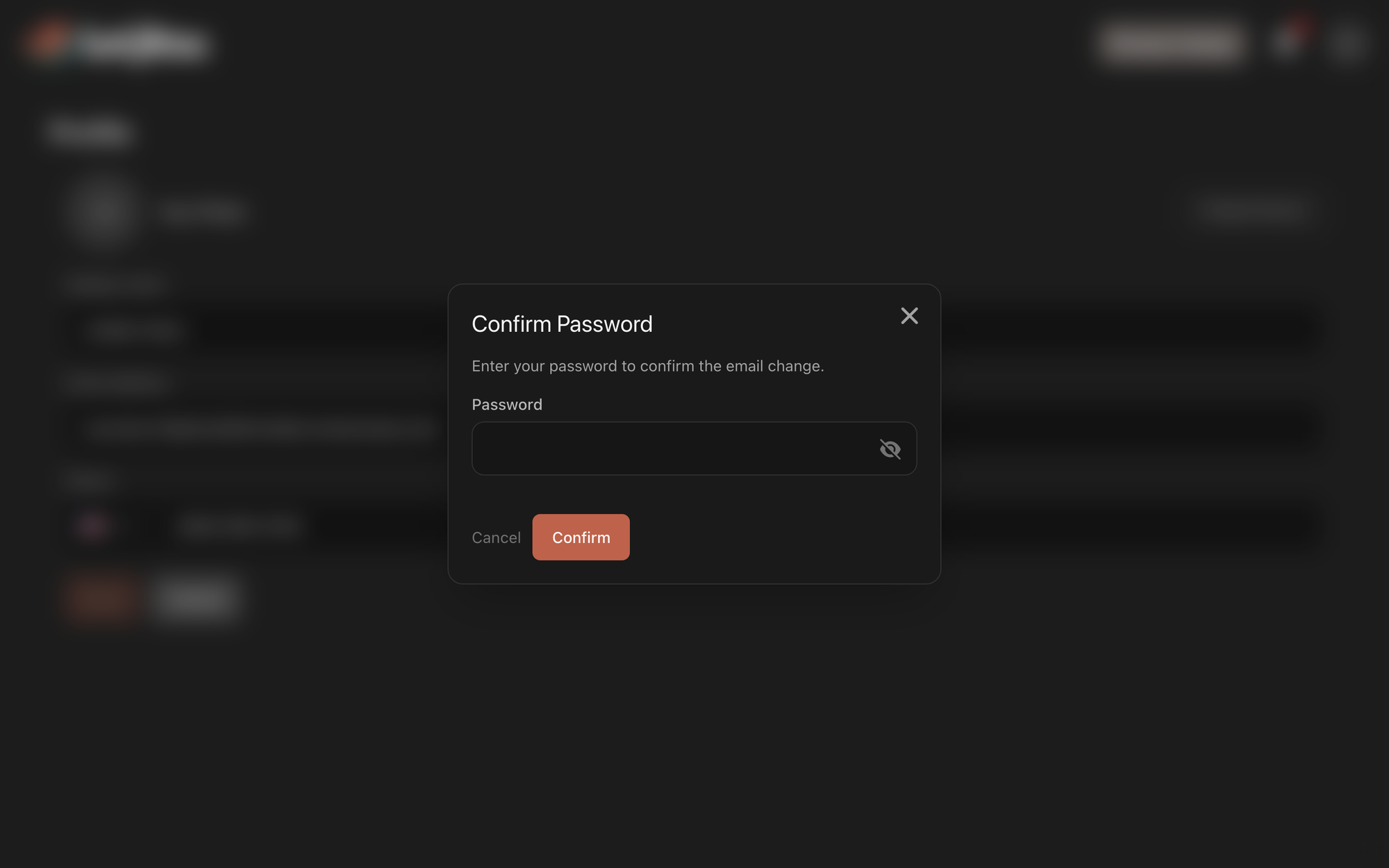
- In Confirm Password, enter your current password and click Confirm.
The dialog says "Verification email sent to" the new address. Close it. Your Profile now shows "Waiting for you to confirm" the new address, with Resend and Cancel. Your old address still works until you confirm.
Confirm the change
- On a computer, open the email sent to the new address, with the subject "Confirm your new LotJitsu email address".
- Click Confirm Email Change. The link works for 24 hours.
- On the Confirm Email Change page, click Confirm Email Change. If you aren't logged in on that browser, enter your Current password first.
The page shows Email Updated. From now on, log in with the new address.
What your old address receives
- When you request the change: "Security notice: email change requested", naming the new address, with a Cancel Email Change button.
- When the change is confirmed: a notice that the email address on your LotJitsu account was changed.
If you didn't ask for the change, click Cancel Email Change in the first email, then Cancel Email Change again on the page that opens. Then change your password.
Good to know
- Confirming the change logs you out on your other browsers and phones.
- Changed your mind? Click Cancel next to "Waiting for you to confirm" on your Profile.
- No email at the new address? Check spam, then click Resend on your Profile.
- "An account with this email already exists." means another account uses that address.
- "This link has already been used." or "This email change link has expired. Please request a new one." means you need to start again from your Profile.
- You can start the change in the app too: type the new address on your Profile and tap Save Changes. The confirmation link must be opened on a computer, though. On a phone, the link shows the Download the App page.

