

Using a computer? See Create a catalog on your computer.
A catalog holds the lots you are preparing for one platform. You name it, pick the platform you will upload to, and choose the fields each lot collects.
Steps
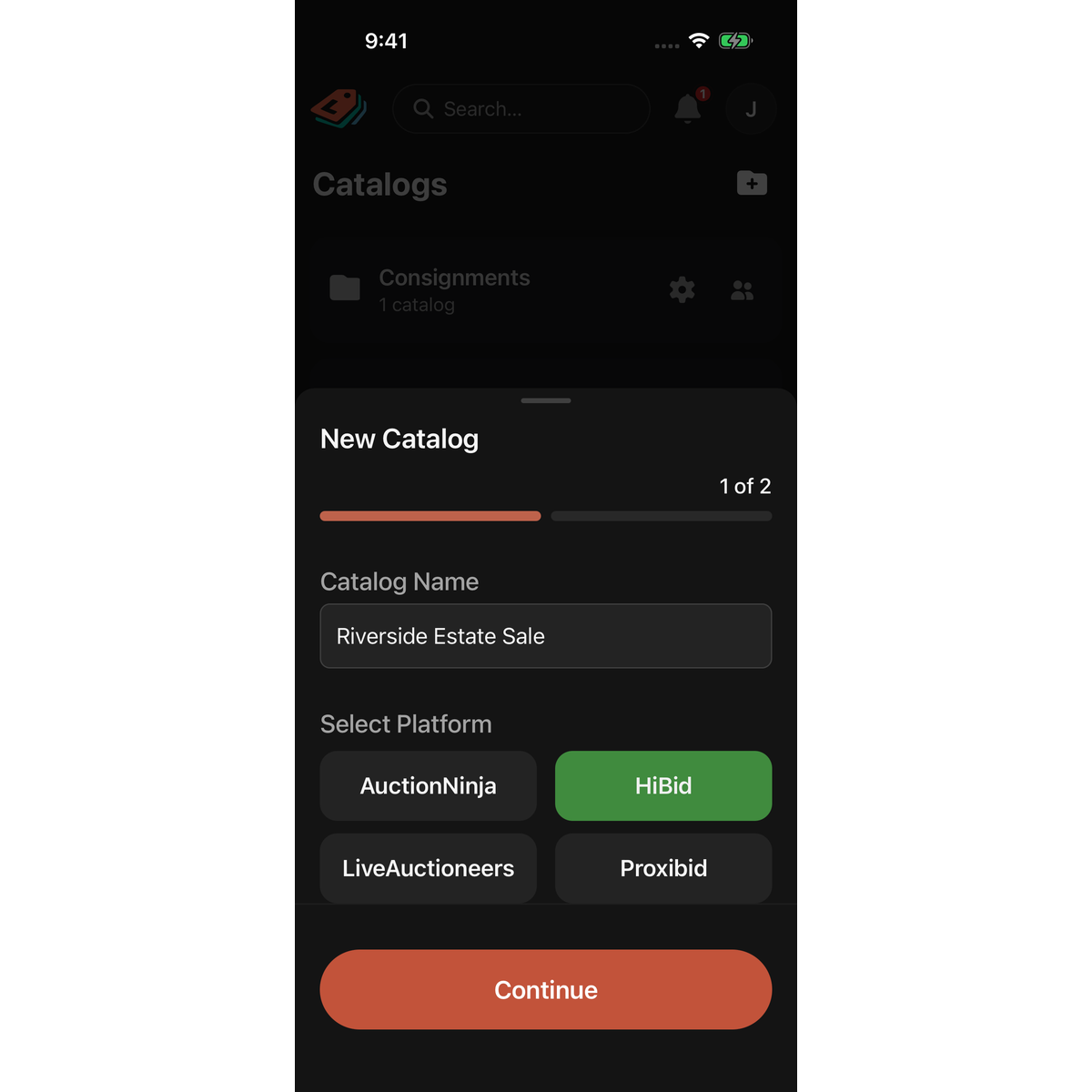
- On the Catalogs page, tap Add Catalog in the bar at the bottom of the screen. The New Catalog sheet opens at 1 of 2.
- Under Catalog Name, type a name you will recognize later.
- Under Select Platform, tap the platform you will upload this catalog to: AuctionNinja, HiBid, LiveAuctioneers or Proxibid.
- Tap Continue. It stays dimmed until you have a name and a platform.
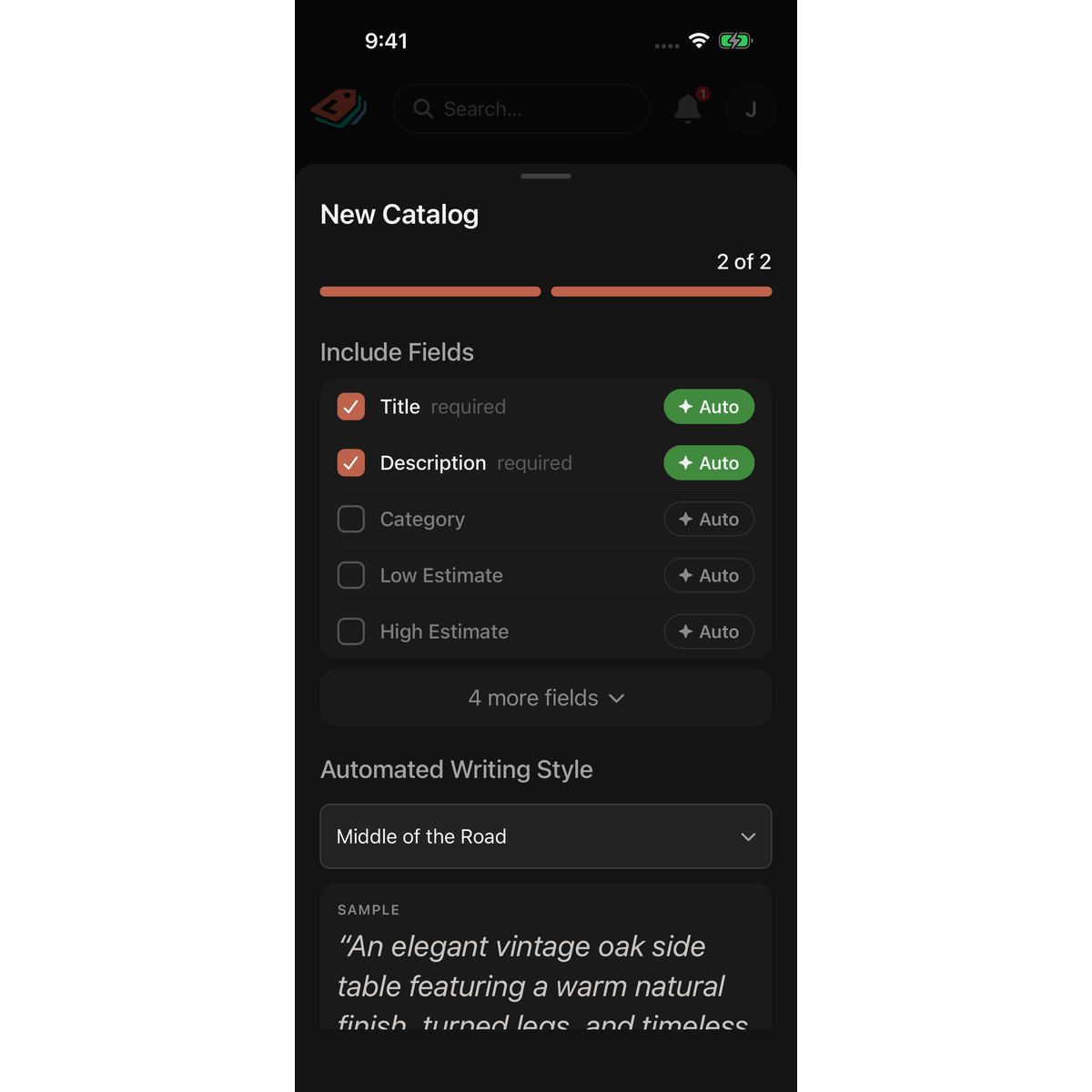
- On 2 of 2, check the list under Include Fields. Every lot in this catalog collects the ticked fields. Fields marked required are always ticked. Tap the Auto pill on a field to have LotJitsu write it from your photos. Tap N more fields to see the rest of the platform's fields.
- If any field is set to Auto, choose a tone under Automated Writing Style. The SAMPLE card shows how that style reads.
- If you want formatted descriptions (bold, lists, paragraphs), turn on Use Rich-text (HTML) formatting. This switch does not appear for HiBid, which takes plain text only.
- Tap the button at the bottom. It sums up your choices, for example Collect 4 Fields (Auto writes 2).
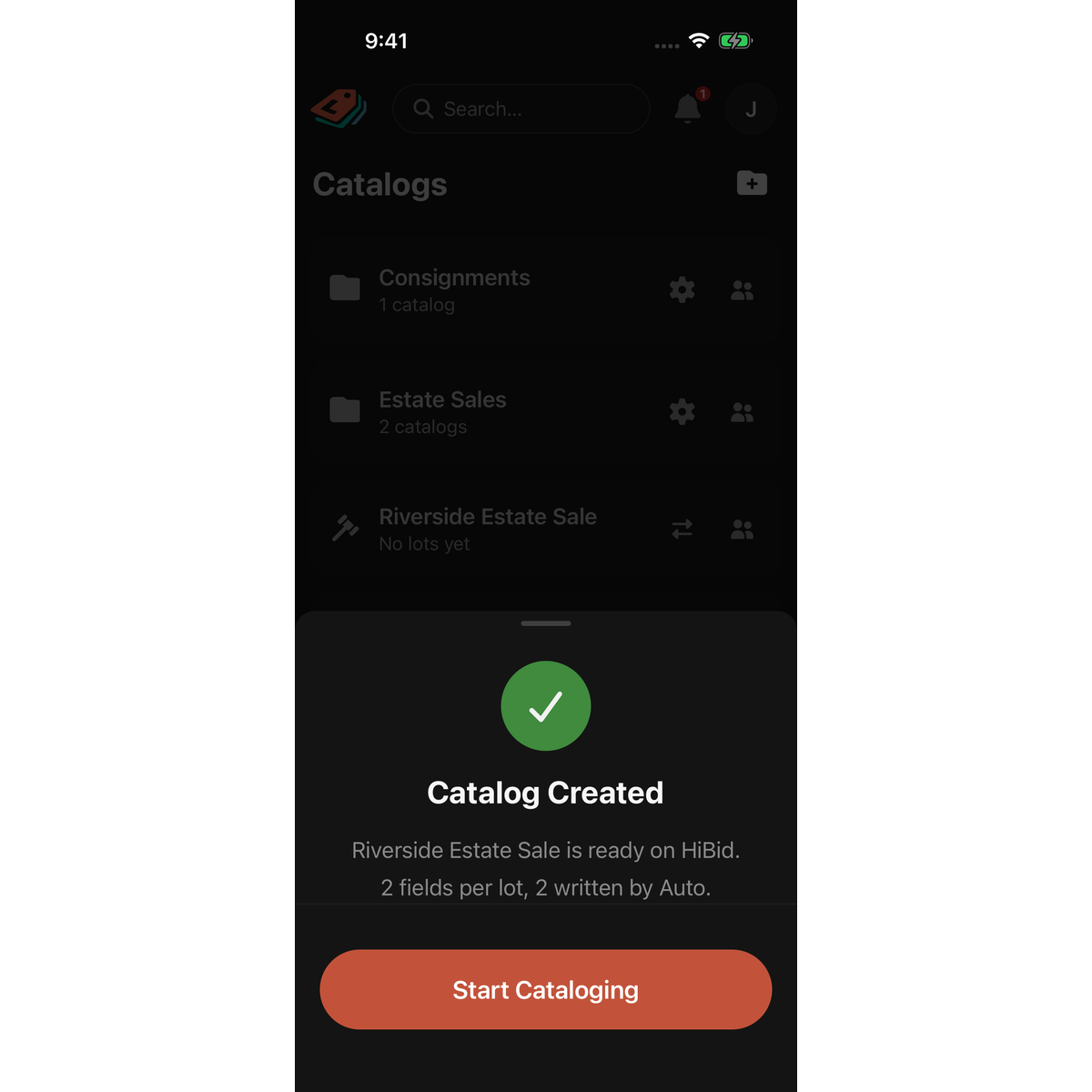
- When Catalog Created appears, tap Start Cataloging to open your new catalog. Closing the sheet opens it too.
Good to know
- Where it lands. A catalog made from the Catalogs page sits at the top level, outside any folder. To file it, press and hold its row and drag it onto a folder. See Organize catalogs with folders on your phone. If you start from a folder's own page (opened from a search result), Add Catalog creates the catalog inside that folder.
- Names. Two catalogs in the same folder, or two at the top level, cannot share a name. If the name is taken, the sheet returns to step 1 with "A catalog with that name already exists" under Catalog Name.
- No connection? You can still create a catalog. LotJitsu shows Catalog saved locally. It will appear in your list once connectivity returns. and you can start adding lots straight away. If the name turns out to be taken when it is sent, LotJitsu adds " (2)" to it.
- If you see Fields for {platform} aren’t available offline yet. Connect once to load them., connect once and tap Retry.
- Include Condition is not in this sheet. It is in Catalog Settings, along with everything you chose here.
- What each field and pill means: Choose a platform and fields and How LotJitsu writes your listings.

