

Log in to the LotJitsu app with the same email and password you use on lotjitsu.com.
Using a computer? See Log in on lotjitsu.com.
Steps
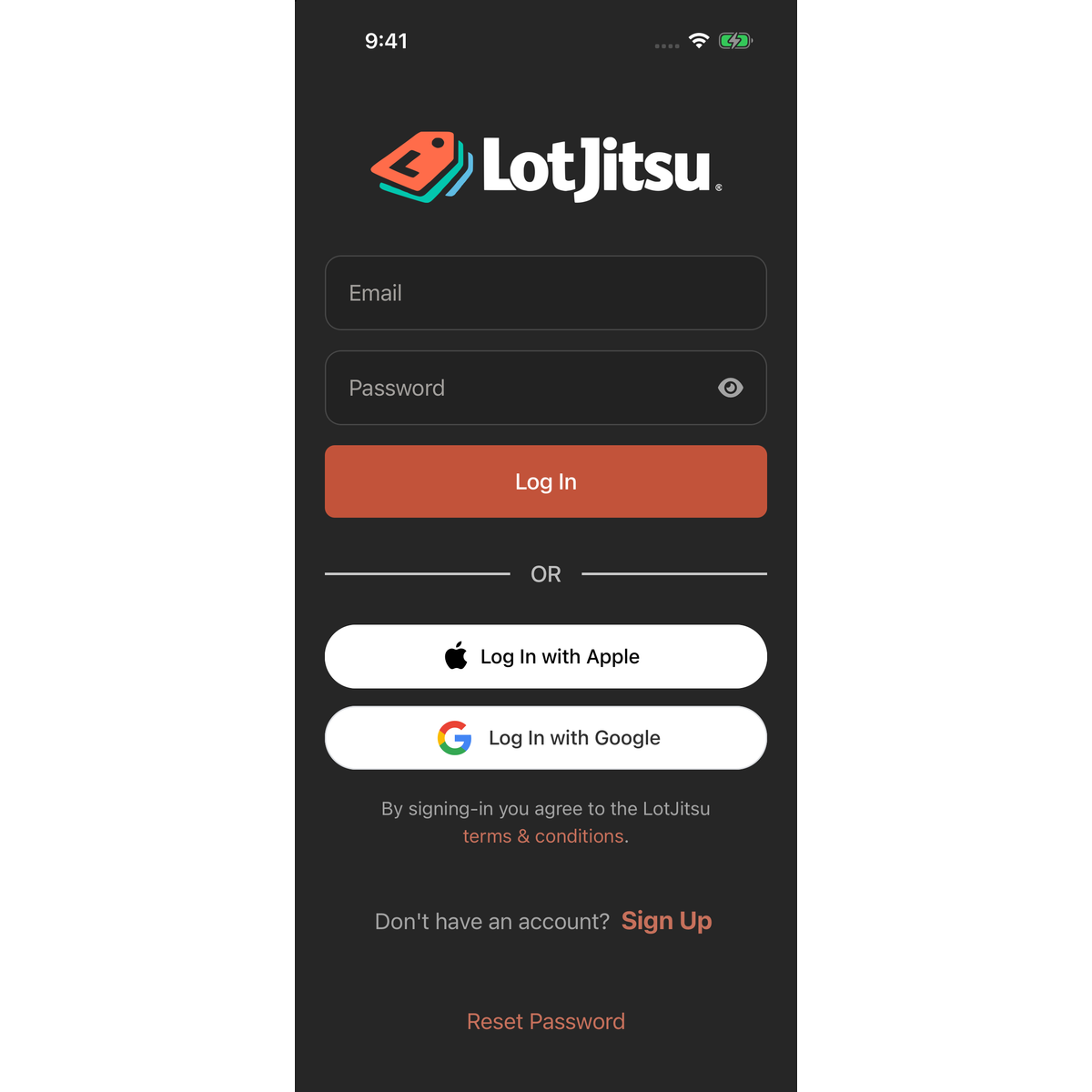
- Open the app. When you are logged out, the Log In screen is the first screen.
- Enter your Email and Password. Your phone's password manager can fill them in.
- Tap Log In. The button reads "Logging in..." while LotJitsu checks your details.
The app opens on Catalogs. It stays logged in, so next time it opens straight to your catalogs, even with no connection.
If it doesn't work
- "Incorrect email or password." Check for typos and capital letters, then try again. Forgotten it? Tap Reset Password at the foot of the screen. See Reset your password in the app.
- A "Verify your email" panel means you haven't opened the verification link yet. Tap Resend Verification Email, then open the newest email on this phone. See Verify your email address.
- "Your account has been locked due to too many failed login attempts. Please try again later." Wait a while, or reset your password.
- "An unexpected error occurred. Please try again later." The app couldn't reach LotJitsu. Logging in needs a connection. Check it and try again.
More fixes: Trouble logging in.
Sign out
- Tap your photo or initial at the top right.
- Tap Sign Out, the red row in the account panel.
- In Are you sure?, tap Sign Out. To stay logged in, swipe the sheet down or tap outside it.
Signing out removes this account's saved work from the phone. If you worked without a connection, reconnect and give the app time to send your changes before you sign out.
Good to know
- To switch accounts, sign out, then log in with the other email address.
- Sign in with Apple (iPhone and iPad only) and Sign in with Google appear under OR when those options are available. See Log in with Apple or Google.
- Don't have an account? Tap Sign Up. See Create your account in the LotJitsu app.
- To see every phone and browser logged in to your account, open Security. See Password, sign-in methods and sessions in the app.

