

On a computer, you log in to LotJitsu on lotjitsu.com. After that, Manage Catalogs takes you to your catalogs.
Using the phone app? See Log in to the LotJitsu app.
Steps
- Go to lotjitsu.com and click Log In at the top right.
- Enter your Email and Password. Click the eye icon to show the password as you type.
- Click Log In. The button reads "Logging In..." while LotJitsu checks your details.
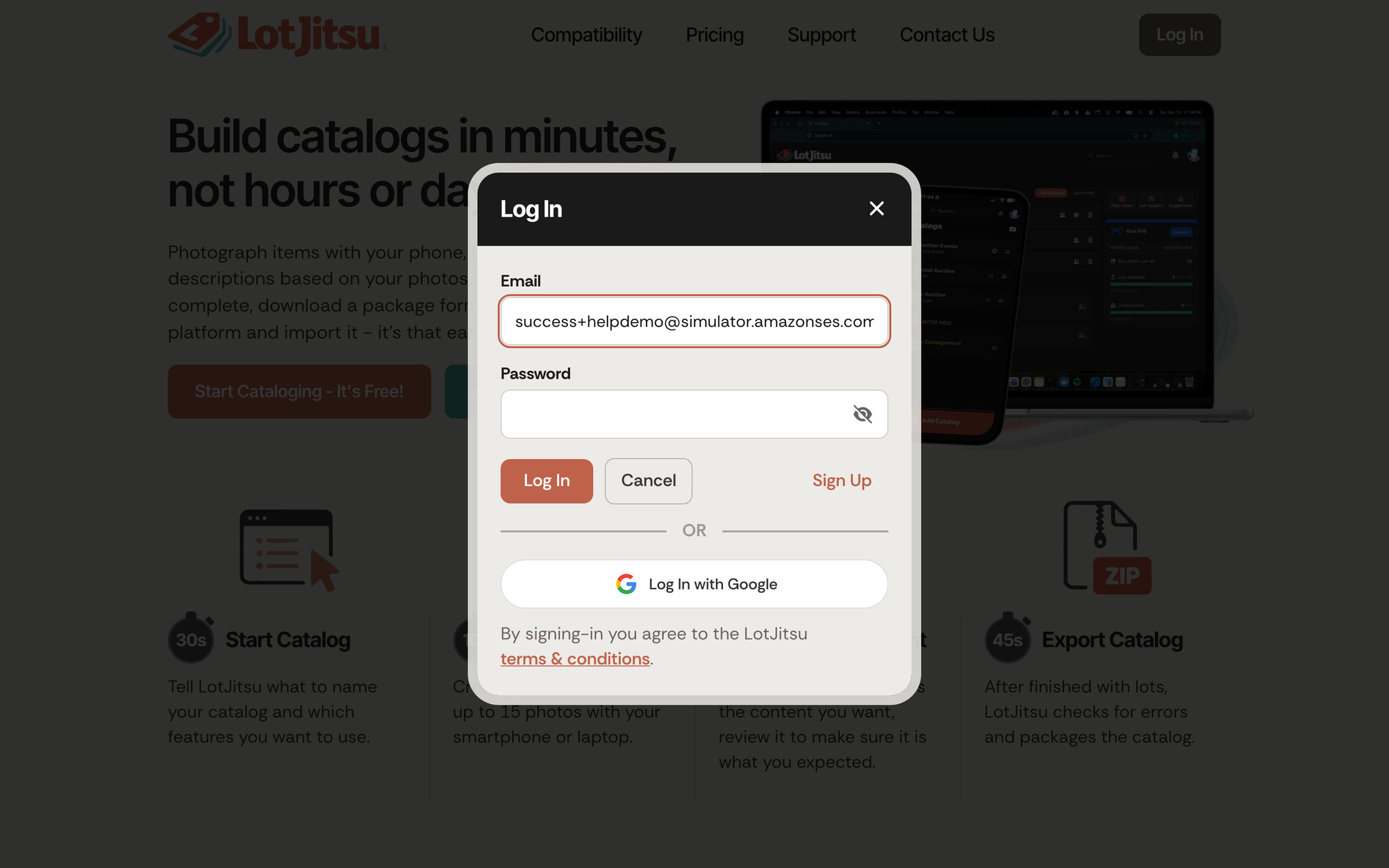
The window closes and the page reloads. The top right of the page now shows Manage Catalogs and your photo or initial. Click Manage Catalogs to open your Catalogs page.

Opening app.lotjitsu.com while logged out brings you to this same Log In window.
If it doesn't work
- "Having trouble logging in?" with "That email and password don't match." means the email or password is wrong. Check for typos and Caps Lock, then try again. Click Reset Password to choose a new one, or Get help to open Help. See Reset your password on lotjitsu.com.
- "Your email still needs to be verified" means you haven't opened the verification link yet. Click Resend Email. See Verify your email address.
- "Your account has been locked due to too many failed login attempts. Please try again later." Wait a while, or reset your password.
- "This account has been disabled. Please contact support." See Contact support.
More fixes: Trouble logging in.
Sign out
- Click your photo or initial at the top right of lotjitsu.com, or of LotJitsu on your computer.
- Click Sign Out.
- In Are You Sure?, click Sign Out.
Good to know
- Your photo menu on lotjitsu.com also has My Plan, Payment Methods, Payment History, History, Import, Settings and Help.
- Log In with Apple and Log In with Google appear under OR when those options are available. See Log in with Apple or Google.
- Don't have an account? Click Sign Up in the Log In window. See Create your account on lotjitsu.com.

